
- Top Pick: Huion Kamvas 13 Gen 3
- Runner-up: XP-Pen Artist 12 2nd Gen
- Also consider: Wacom One Medium
A drawing tablet turns a Mac into a drawing desk. The pen draws on the tablet surface or directly on its screen, and the artwork appears in the Mac app of your choice. A pen display has its own screen, while a screen-free pen tablet has a blank surface and the hand draws on the pad while the eyes watch the Mac monitor.
Every pick here connects to a Mac, and none is a standalone device: a pen display or pen tablet must stay plugged into a computer to work.
As an Amazon Associate, we earn from qualifying purchases.
Quick Answer
Start with the Huion Kamvas 13 Gen 3 if you want to draw directly on a screen, since it pairs a laminated 13.3-inch display with dual dials and the highest pressure sensitivity here. Choose the XP-Pen Artist 12 2nd Gen for a smaller pen display, the Wacom One Medium for a wireless screen-free tablet, the Wacom Intuos S for a compact wired pad, and the Huion Inspiroy H640P for the smallest budget pick.
How to Choose a Drawing Tablet for Mac
Pen display or screen-free pad. A pen display shows the artwork under the pen, which feels closest to drawing on paper. It costs more, needs a cable to the Mac, and takes up more desk space. A screen-free pad is lighter, cheaper, and easier to carry, but it asks for a short learning period while the hand and the eyes learn to work apart.
Pressure levels and tilt. Pressure sensitivity decides how much line variation the pen can express. All five picks here offer at least 4,096 levels, and the two premium displays offer 16,384. Tilt support lets the pen shade like a pencil held at an angle, and every pick here supports tilt.
Size, shortcut keys, and cables. A larger active area gives the arm more room, while a smaller tablet travels better. Shortcut keys and dials put undo, zoom, and brush size under the spare hand. Check the cable before ordering: some displays need a three-in-one cable rather than a single USB-C cable.
Mac driver support. Every tablet here ships with a macOS driver from its maker, and the driver is what makes pen pressure and shortcut keys work in Mac apps. Check the maker driver page for the macOS version on the Mac before ordering. Two Wacom picks and two Huion picks appear here, which reflects how concentrated this market is.
The 5 Best Drawing Tablets for Mac
1. Huion Kamvas 13 Gen 3

The Kamvas 13 Gen 3 is the most complete pen display in this guide. Its 13.3-inch screen is fully laminated with anti-sparkle canvas glass, so the pen tip sits close to the image with little glare, and it covers 99 percent of the sRGB color range. The PenTech 4.0 pen offers 16,384 pressure levels with tilt support, and two dials plus five shortcut keys cover the most-used commands.
Full lamination keeps lines landing where the pen tip points, and the anti-sparkle finish cuts reflections under desk lamps. A stand is sold as a bundle option rather than included in the base listing. Confirm the listing names the Gen 3 model, since earlier Kamvas 13 versions are still listed under similar names. The same tablet also appears in an earlier article on another site, which is a different site, so there is no conflict here.
At about 2 pounds, this is a desk tablet rather than a travel one, and the screen-free picks further down this guide travel far better.
Specs
- Tier: Premium
- Type: Pen display with screen
- Display: 13.3 in Full HD, 1920 x 1080, fully laminated
- Color: 99 percent sRGB, anti-sparkle canvas glass
- Pen: PenTech 4.0, 16,384 pressure levels, tilt support
- Controls: Dual dials, 5 shortcut keys
- Weight: About 2 lb
- Compatibility: Mac, Windows, Android
- Best for: Drawing directly on screen at a desk
Choose the Kamvas 13 Gen 3 if you want the fullest drawing experience on a Mac.
2. XP-Pen Artist 12 2nd Gen

The Artist 12 2nd Gen is the smaller pen display in this guide, built around an 11.9-inch Full HD screen with full lamination and a 127 percent sRGB color range. The X3 Elite stylus offers 8,192 pressure levels with 60 degrees of tilt, and eight shortcut keys sit along the side. It connects to a Mac over a three-in-one cable or a single USB-C cable, and it comes in black, green, blue, and pink.
An 11.9-inch display fits on a crowded desk, slides into a bag with a laptop, and still gives enough room for sketching and photo retouching. The listing data for this model runs older than the rest of the group, so confirm the live offer before ordering. The trade against the Kamvas pick is pressure range and controls: with 8,192 levels instead of 16,384 and keys instead of dials, the Artist 12 gives up some fine control for a smaller footprint.
Specs
- Tier: Mid-range
- Type: Pen display with screen
- Display: 11.9 in Full HD IPS, 1920 x 1080, fully laminated
- Color: 127 percent sRGB, 94 percent Adobe RGB
- Pen: X3 Elite stylus, 8,192 pressure levels, 60-degree tilt
- Controls: 8 shortcut keys
- Connection: Three-in-one cable or single USB-C cable
- Compatibility: Mac, Windows, Chrome OS, Android, Linux
- Best for: A smaller pen display for desk and travel
Choose the Artist 12 2nd Gen if you want a pen display that travels. It is the most portable screen in this guide.
3. Wacom One Medium

The Wacom One Medium is the wireless screen-free tablet in this guide. It has no display of its own: the pen draws on a blank pad while the artwork appears on the Mac monitor. It connects over Bluetooth or USB-C, measures 9.9 by 7.1 inches, and ships with the battery-free Wacom One Standard Pen at 4,096 pressure levels.
A Bluetooth tablet sits anywhere on the desk without a cable run, and the pad is thin enough to slip into a bag beside a MacBook. The listing data for this model runs older than the freshest in the group, so confirm the live offer before ordering.
Drawing on a blank pad while watching a monitor takes a few sessions to feel natural. The active area is not published in the listing records reviewed, so check the maker spec sheet before ordering.
Specs
- Tier: Mid-range
- Type: Screen-free pen tablet
- Size: 9.9 x 7.1 in
- Pen: Wacom One Standard Pen, 4,096 pressure levels, tilt support
- Connection: Bluetooth or USB-C
- Active area: Not stated in listing records reviewed
- Compatibility: Mac, Windows, Android, Chromebook
- Best for: Wireless drawing on a Mac without a cable
Choose the Wacom One Medium if you want a screen-free tablet that works wirelessly. It is the only Bluetooth pick in this guide.
4. Wacom Intuos S
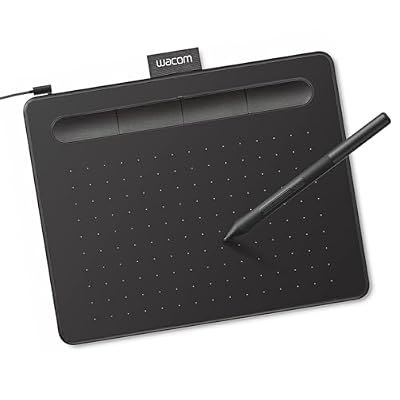
The Intuos S is the compact wired tablet in this guide, and it has been the default first tablet for Mac artists for years. It measures 7.8 by 6.3 inches with a 6.0 by 3.7 inch active area, offers 4,096 pressure levels with a battery-free pen, and carries four customizable ExpressKeys. It connects to a Mac over USB, and Wacom bundles training material and software trials with the tablet.
A 6.0 by 3.7 inch drawing area fits in any bag and suits note-taking and photo retouching, but long strokes feel cramped compared with the larger pads here. The wired connection is simple, with no battery or pairing to manage, and the ExpressKeys cover undo, zoom, and brush size without reaching for the keyboard.
Specs
- Tier: Budget
- Type: Screen-free pen tablet
- Size: 7.8 x 6.3 in
- Active area: 6.0 x 3.7 in
- Pen: Battery-free, 4,096 pressure levels
- Controls: 4 customizable ExpressKeys
- Connection: Wired USB
- Compatibility: Mac, Windows, Android, Chromebook
- Best for: A first tablet or a compact travel pad
Choose the Intuos S if you want the simplest way into drawing on a Mac. It is the smallest wired pick in this guide.
5. Huion Inspiroy H640P

The Inspiroy H640P is the smallest and lightest tablet in this guide. Its active area measures 6.3 by 3.9 inches, the whole pad is only 0.3 inches thick and weighs about 0.61 pounds, and it still offers 8,192 pressure levels with tilt support through the battery-free PW100 pen.
The value here is density: a full-featured pen tablet that disappears into a laptop sleeve. The 5,080 lines-per-inch resolution and 233 reports-per-second rate keep strokes smooth at this size. One detail to pin: a regional listing for the same product name carries a different code, so confirm the listing matches the reference table below. The limit is the same as the Intuos S: a small active area suits notes and short sketches, but it asks the wrist to do more work than a larger tablet for long sessions.
Specs
- Tier: Budget
- Type: Screen-free pen tablet
- Active area: 6.3 x 3.9 in
- Pen: PW100 battery-free, 8,192 pressure levels, tilt support
- Controls: 6 hot keys
- Resolution: 5,080 lines per inch, 233 reports per second
- Thickness and weight: 0.3 in thick, about 0.61 lb
- Included: Drawing glove, 18 replacement pen nibs
- Compatibility: Mac, Windows, Linux, Android
- Best for: The smallest tablet for a laptop bag
Choose the Inspiroy H640P if you want the most portable tablet in this guide.
Who Should Skip Drawing Tablets for Mac
Skip a pen display if the Mac will move constantly, since the display and cable add bulk that a screen-free pad avoids. Skip a screen-free pad if drawing on a blank surface while watching a monitor sounds frustrating, since that adjustment period is real. Skip the whole category if the drawing happens only on an iPad, since the iPad already has its own screen and pen. Check that the tablet works with the exact Mac app you use, since driver support varies by app as well as by macOS version.
Safety and Recall Checks
No CPSC recall covers pen tablets or pen displays as a class, and none covers any of the five picks here. The nearest record sits in a different class: an Australian recall from February 2026 covered a 10-inch LCD writing tablet for children whose button battery was not secured, which is a toy, not a computer drawing tablet. The Anker, INIU, Belkin, and Baseus power-bank recalls cover battery packs, not drawing tablets.
Frequently Asked Questions
Do drawing tablets work with any Mac?
Mostly yes, with a driver. Every pick here ships with a macOS driver from its maker, which enables pen pressure and shortcut keys in Mac apps. Check the maker driver page for the macOS version on the Mac before ordering.
Is a pen display better than a screen-free tablet?
It depends on how you draw. A pen display shows the artwork under the pen, which feels closest to paper and suits long sessions. A screen-free pad is lighter, cheaper, and easier to carry, and it suits note-taking, photo editing, and beginners.
Can I use a drawing tablet with an iPad as well?
Not directly. These tablets are built to connect to a computer, and they need a Mac or Windows machine to run. None of the five picks here turns an iPad into its host computer. For drawing on an iPad itself, the Apple Pencil is the matching tool.
How long does it take to get used to a screen-free tablet?
Most people adjust within a few sessions.
Final Verdict
Buy on the screen question first, then on size. Most Mac artists should take the Huion Kamvas 13 Gen 3 for its laminated display, dual dials, and 16,384 pressure levels. Choose the XP-Pen Artist 12 2nd Gen for a smaller pen display that travels, the Wacom One Medium for wireless drawing, the Wacom Intuos S for a simple first tablet, and the Huion Inspiroy H640P for the smallest pad that still does the job.


Write Your Review
No reviews yet. Be the first to share your experience!