
- Top Pick: Dell 27 Monitor S2725QS, 4K UHD IPS, 120Hz, 5ms, FreeSync Premium
- Best Value: Philips 24 Inch Computer Monitor FHD 100Hz VA VESA Flicker-Free, 241V8LB
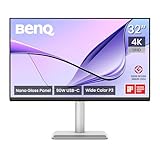
- Premium Choice: BenQ MA320U 32” 4K 3840×2160 Monitor for MacBook® Pro/Air, Dual USB-C, 90W Power Delivery, Mac Color Match, USB Hub, Brightness & Volume Control on Mac, Height & Tilt Adjustable Stand, P3 Color Gamut
Connecting a MacBook Pro to an external display sounds simple until scaling looks wrong, colors drift, or the monitor refuses to charge your laptop. The core problem is that macOS treats external panels differently than Windows does, and not every display is built with Apple’s color pipeline and single-cable workflow in mind. A monitor that looks sharp on a PC might render text with a slight fuzz on a Mac, or it might deliver only a fraction of the power needed to keep your battery from draining during heavy work.
What separates a genuinely useful monitor for MacBook Pro owners from a mediocre one comes down to panel resolution and pixel density, color accuracy out of the box, USB-C power delivery wattage, and stand ergonomics. A 4K panel at 27 inches or larger gives macOS the headroom it needs to render crisp Retina-style text. A wide-gamut panel with Mac-aware calibration ensures your photos and videos match what you see on the built-in display. And a single USB-C cable that carries video, data, and enough power to charge means your desk stays clean. Below, eight monitors that address these needs in different ways, ranked by how well they pair with Apple laptops.
As an Amazon Associate we earn from qualifying purchases at no extra cost to you.





Quick Picks
| Product | Best for | Price |
|---|---|---|
| Dell S2725QS | Smooth everyday productivity on a budget | under $250 |
| Philips 241V8LB | Tight desks and secondary screens | under $80 |
| BenQ MA320U | Mac-first workflow with single-cable setup | under $600 |
| Dell S2725QC | Accurate color without the premium price | under $300 |
| BenQ MA320UP | Pros who demand the best Mac integration | under $700 |
| Dell S3425DW | Ultrawide multitasking and video editing | under $400 |
| Samsung 32″ Flat | Large-screen media on a shoestring | under $200 |
| Samsung S36GD | Immersive curved work on a budget | under $150 |
How We Picked
We narrowed this list by weighing four factors that matter most when pairing an external display with a MacBook Pro. First, resolution and pixel density: anything below 4K on screens over 27 inches starts to look soft with macOS’s default scaling. Second, USB-C power delivery: a monitor that charges your laptop eliminates the dongle clutter that defeats the purpose of a clean workspace. Third, color accuracy and gamut coverage, because MacBook Pro owners frequently work in creative apps calibrated to Apple’s color system. Fourth, real-world owner feedback on build quality, stand adjustment range, and long-term reliability. We then ranked by overall value for Mac-centric use rather than raw spec sheets.
The 8 Best Monitor for Macbook Pro in 2026
Dell S2725QS
This 27-inch 4K IPS panel is the sweet spot for MacBook Pro owners who want a sharp, smooth display without spending beyond mid-range. The 120Hz refresh rate makes scrolling and window dragging noticeably fluid compared to 60Hz alternatives, while the IPS panel delivers consistent colors across the full screen. FreeSync Premium support is a bonus if you occasionally connect a gaming rig.
- Pro: Crisp 4K resolution at a size macOS handles well with default scaling.
- Pro: 120Hz refresh makes everyday interactions feel snappy.
- Con: No USB-C power delivery, so you still need a separate charger for your laptop.
Skip it if your workflow depends on single-cable simplicity or wide-gamut color for professional photo and video editing.
Philips 241V8LB
At just under $75, this 24-inch FHD monitor is a practical secondary screen or a starter display for a first MacBook Pro. The VA panel offers good contrast for its size, and the 100Hz refresh rate keeps motion smooth. Flicker-free backlighting reduces eye strain during long sessions, and VESA compatibility means it can mount on an arm to save desk space.
- Pro: Exceptional value for a reliable everyday panel.
- Pro: Flicker-free backlighting and high refresh make it comfortable for extended use.
- Con: 1080p at 24 inches means text lacks the Retina-like sharpness MacBook Pro users expect from a primary display.
Skip it as your only external monitor if you do any design, coding, or detailed creative work.
BenQ MA320U
BenQ designed this 32-inch 4K monitor specifically for MacBook Pro and Air users, and the Mac-first thinking shows everywhere. Dual USB-C ports deliver 90 watts of power, enough to fast-charge even the 16-inch model. Mac Color Match ensures on-screen hues align with Apple’s built-in display, and brightness and volume can be controlled directly from macOS. The P3 gamut covers a wide range of professional color spaces, and the adjustable stand handles height and tilt comfortably.
- Pro: True single-cable setup with 90W charging and a built-in USB hub.
- Pro: Mac-aware color matching and macOS volume/brightness integration.
- Con: The price puts it in territory where some buyers still hesitate to leave Apple’s own display.
Skip it only if budget is the absolute primary constraint and you can tolerate a separate power cable.
Dell S2725QC
The S2725QC upgrades the QS model with 99 percent sRGB coverage and a faster 4ms response time, making it a better fit for color-sensitive work like web design or photo retouching at an accessible price. The 27-inch 4K IPS panel with 120Hz refresh gives smooth, sharp visuals, and FreeSync Premium covers mixed-use scenarios. For MacBook Pro owners who want accurate color without the BenQ-level convenience features, this is a strong value pick.
- Pro: 99% sRGB coverage delivers reliable color for creative tasks.
- Pro: Fast 4ms response pairs well with the 120Hz panel for smooth motion.
- Con: No USB-C connectivity, so cable management stays a manual effort.
Skip it if you need P3-wide gamut accuracy or want a single-cable desk setup.
BenQ MA320UP
The MA320UP builds on the MA320U with the same 32-inch 4K panel, Mac Color Match, 90W USB-C power delivery, and macOS brightness and volume controls, adding refinements that justify the premium for professionals. If you edit video or photos in DaVinci Resolve, Final Cut Pro, or Lightroom and need the widest possible color consistency between your MacBook Pro’s internal and external displays, this is the monitor to benchmark against.
- Pro: Full Mac integration suite with USB hub and single-cable charging in one package.
- Pro: P3 color gamut with Mac Color Match gives the closest cross-display color parity on the market.
- Con: At $650, it sits well above any other monitor here and tests the patience of budget-conscious buyers.
Skip it if your work doesn’t demand color-critical output or if the MA320U covers your needs at a lower price.
Dell S3425DW
This 34-inch ultrawide WQHD monitor trades vertical resolution for horizontal workspace, which makes it excellent for developers, spreadsheet users, and video editors who juggle multiple windows. The VA panel provides strong contrast, 120Hz keeps scrolling smooth, and the Eye Comfort technology reduces blue-light-induced fatigue during long sessions. It will not match a 4K panel for pixel density, but the width compensates in workflow terms.
- Pro: Generous horizontal real estate replaces a dual-monitor setup for many tasks.
- Pro: Eye Comfort panel reduces strain during marathon work sessions.
- Con: Sub-4K resolution means text appears less sharp than on the other 4K options here.
Skip it if you prioritize crisp text and fine detail over workspace breadth.
Samsung 32″ Flat
At $170, Samsung’s 32-inch flat panel targets anyone who wants a large screen for media consumption, casual productivity, or a secondary display without breaking the budget. The size alone makes it useful for video calls, presentations, or simply having a bigger canvas beside your MacBook Pro. For the money, it delivers a surprisingly functional viewing experience for light workloads.
- Pro: Large diagonal at a low price, ideal for casual and secondary use.
- Pro: Flat-panel design keeps edge-to-edge content distortion-free, helpful for spreadsheets and video.
- Con: Lacks the resolution and color coverage MacBook Pro users need for design or photo editing.
Skip it as a primary creative display; it is best understood as a big, affordable auxiliary screen.
Samsung S36GD
The 1800R curve of this 27-inch Essential S3 monitor wraps content around your peripheral vision, which feels immersive for both productivity and entertainment. At $130, it undercuts most competitors on price while still offering Full HD resolution and a curved form factor that is easy on the eyes over long periods. Pair it with a MacBook Pro as a dedicated reading, writing, or video-call screen and it serves well.
- Pro: Gentle 1800R curvature adds immersion without the distortion some find on tighter curves.
- Pro: Under $130 makes it one of the most affordable curved options suitable for a Mac setup.
- Con: FHD resolution at 27 inches falls short of macOS scaling preferences for text-heavy work.
Skip it if you read and write code all day, where 4K sharpness makes a meaningful difference.
Buying Guide
Resolution and Pixel Density
macOS renders text and interface elements at a higher logical resolution than Windows, which means a 1080p panel can look noticeably soft on a Mac, especially at 27 inches or larger. The best monitor for MacBook Pro needs at least 4K at 27 inches to hit the pixel density threshold where Retina scaling looks natural. If 4K is out of budget, a smaller FHD screen under 24 inches is a better compromise than a large FHD panel.
USB-C Power Delivery and Connectivity
A single USB-C cable that carries DisplayPort video, data, and power is the cleanest workflow for a MacBook Pro. Look for at least 65 watts of delivery, though 90 watts is ideal for the larger 16-inch models that draw more power during demanding tasks. Monitors with a built-in USB hub extend your laptop’s ports and eliminate the need for a separate dock, keeping your setup minimal.
Color Gamut and Mac Integration
sRGB coverage is table stakes, but if you work in photo editing, video, or design, P3 gamut support matters because modern MacBooks ship with a wide-gamut display. Monitors that offer Mac-aware color modes or calibration aligned with Apple’s color pipeline reduce the gap between your built-in screen and external display. Some models, like the BenQ MA series, even let you adjust brightness and volume from macOS itself, which is a small but meaningful convenience.
Our Verdict
Best overall pick: The BenQ MA320U earns the top spot because it is the only monitor here built from the ground up for MacBook Pro and Air owners, offering 90W single-cable power delivery, Mac Color Match, a P3 gamut, and macOS integration controls at a price that undercuts its higher-end sibling while delivering nearly identical core features.
Best budget pick: The Dell S2725QS delivers 4K resolution and a 120Hz refresh for $250, which is hard to argue against if you can live with a separate power cable and a modest color gamut.
Condition under which another wins: If your workflow revolves around multiple open windows, spreadsheets, or timeline-based editing rather than pixel-perfect color, the Dell S3425DW ultrawide gives more usable screen space for the money than any 4K option on this list.
FAQ
Do I need a 4K monitor for a MacBook Pro?
For a primary display at 27 inches or larger, yes. macOS default scaling looks noticeably soft on sub-4K panels at that size, affecting text clarity and interface sharpness. If you are using a smaller screen under 24 inches, Full HD remains acceptable for light use.
Will any USB-C monitor charge my MacBook Pro?
Not all of them. You need a monitor that supports USB-C DisplayPort Alt Mode with power delivery, and the wattage must match your laptop’s requirements. The 16-inch MacBook Pro can draw more than 65W under load, so look for at least 85 to 90 watts of delivery for the fastest charging.
Is a curved or flat monitor better for a MacBook Pro?
Flat panels are generally preferred for photo and video work because they keep geometry true edge to edge. Curved monitors shine in immersive productivity scenarios, such as ultrawide text editing or coding, where wrapping content around your field of view reduces head movement.
Can I use a non-Mac-specific monitor with my MacBook Pro?
Absolutely. Any DisplayPort or HDMI-capable monitor works. The advantage of Mac-specific models like the BenQ MA series is out-of-the-box color alignment with Apple’s gamut and software integration for brightness and volume controls, which saves you from adjusting settings manually each session.





Write Your Review
No reviews yet. Be the first to share your experience!