
As an Amazon Associate we earn from qualifying purchases.
A trackball can be a smart upgrade for a Mac desk. Instead of sliding a mouse across the surface, you roll a ball with your thumb or fingers while the device stays still. That helps on small desks, in tight home offices, and during long sessions in creative, office, and coding apps. For Mac users, the key is clean Bluetooth pairing, reliable software support in macOS, and a shape that suits how you like to work.
Disclosure: This article contains affiliate links. If you buy through these links, we may earn a commission at no extra cost to you.
The five picks below cover the main styles worth considering. There are two thumb-operated models for people moving from a conventional mouse, two large finger-operated models for precise control, and one classic wired design with a scroll ring. All work with Mac computers, though wired and receiver-based models may need a USB-C adapter on newer MacBooks.
How to Choose
Start with thumb versus finger control. Thumb trackballs feel familiar at first and keep your fingers on the buttons, which suits general browsing and office work. Finger trackballs use a larger ball in the centre or front, giving finer control for photo editing, audio work, and detailed timelines, but they take longer to learn.
Next, check connectivity. Bluetooth is the cleanest option for a MacBook, iMac, or Mac mini because it leaves ports free. A 2.4GHz receiver can feel very stable, but most receivers are USB-A, so a modern Mac may need an adapter or dock. Wired models avoid charging and pairing issues entirely.
Then look at ball size, buttons, and software. Larger balls tend to glide more smoothly and allow smaller cursor movements. Extra buttons help only if the companion app works well on macOS for assigning shortcuts. Finally, consider hand size, left- or right-handed use, and cleaning: a ball that pops out easily is simpler to keep tracking accurately.
1. Logitech MX Ergo Wireless Trackball

The MX Ergo is the premium thumb-trackball option for Mac users who want a refined, sculpted shape. Its adjustable hinge lets you tilt the body for a more upright hand position, and Logitech Options software on macOS makes it easy to customise buttons and pointer speed. Bluetooth pairing suits a MacBook desk, while the receiver gives a second connection option for a desktop setup.
Specs
- Brand: Logitech
- Model: MX Ergo
- ASIN: B0753P1GTS
- Connectivity: Bluetooth and Unifying USB receiver
- Tilt: Adjustable hinge from 0 to 20 degrees
- Buttons: 8
- Battery: Rechargeable Li-Po, up to 4 months on a full charge
Best for: Mac users who want a premium thumb trackball with an adjustable tilt angle.
2. Logitech ERGO M575S Wireless Trackball

The ERGO M575S is a simpler thumb-operated pick that is easy to recommend for everyday Mac work. Its curved shape keeps your hand still on the desk, the ball removes for cleaning, and it connects by Bluetooth or its USB receiver. It uses a replaceable AA battery, so there is no charging cable to manage, and its quieter clicks suit shared workspaces.
Specs
- Brand: Logitech
- Model: ERGO M575S
- ASIN: B0BBQ3ZYNY
- Connectivity: Bluetooth Low Energy and Logi Bolt USB receiver
- Tracking: Up to 2,000 DPI
- Buttons: 5
- Battery: 1 x AA, up to 18 months
Best for: Everyday Mac office work and small desks where a simple thumb ball is easiest to learn.
3. Kensington Expert Mouse Wired Trackball

The Expert Mouse is a long-running finger-trackball design built around a large central ball and a distinctive scroll ring. The symmetrical shape works for right- and left-handed users, and the ring makes long documents and timelines easy to move through. Because it is wired, it is a dependable choice for a fixed Mac desk, though USB-C-only Macs will need an adapter.
Specs
- Brand: Kensington
- Model: Expert Mouse (K64325)
- ASIN: B00009KH63
- Connectivity: Wired USB
- Tracking: DiamondEye optical tracking
- Buttons: 4, with scroll ring
- Design: Symmetrical, with detachable wrist rest
Best for: Precision finger control, ambidextrous use, and scrolling through long documents.
4. ELECOM HUGE Wireless Trackball
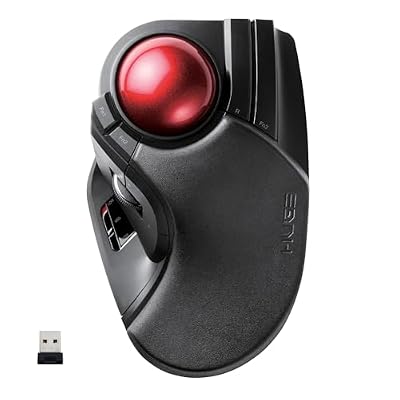
True to its name, the HUGE gives you a very large finger-operated ball and a broad palm rest. That size helps with smooth, deliberate movements and gives you room for eight buttons, including forward and back controls near the thumb. It connects through a 2.4GHz USB receiver, so plan on an adapter for a USB-C-only MacBook, and use ELECOM software to assign the extra buttons.
Specs
- Brand: ELECOM
- Model: HUGE M-HT1DRBK
- ASIN: B0735584RM
- Connectivity: 2.4GHz wireless USB receiver
- Ball: 52mm finger-operated ball
- Buttons: 8
- DPI: 500, 1,000, and 1,500 switchable
Best for: Users with larger hands who want a big ball, a palm rest, and many buttons.
5. ELECOM DEFT PRO Trackball

The DEFT PRO is the flexible connectivity pick in this group. It can run wired, over a 2.4GHz receiver, or by Bluetooth, which makes it handy for switching between a Mac and another computer. Its finger-operated ball sits in a more compact body than the HUGE, with eight buttons for shortcuts in creative and productivity apps.
Specs
- Brand: ELECOM
- Model: DEFT PRO M-DPT1MRXBK
- ASIN: B07C9T4TTW
- Connectivity: Wired USB, 2.4GHz wireless, and Bluetooth
- Buttons: 8
- Dimensions: 91.4 x 133.4 x 57.3 mm
- Design: Finger-operated ball with palm support
Best for: Mac users who want one trackball that can connect wired, wirelessly, and by Bluetooth.
Conclusion
For most Mac users, the ERGO M575S is the easiest starting point, while the MX Ergo adds tilt and a rechargeable battery. If you prefer finger control, the Kensington Expert Mouse is the classic scroll-ring choice, the ELECOM HUGE maximises ball size and palm support, and the DEFT PRO offers the widest choice of connections. Try to match the control style to your work first, then choose the connection type that fits your Mac.





Write Your Review
No reviews yet. Be the first to share your experience!