
As an Amazon Associate we earn from qualifying purchases.
- 1. Logitech MX Brio — the best all-round 4K pick for a Mac desk
- 2. Insta360 Link 2 — a gimbal camera that follows you around the desk
- 3. OBSBOT Tiny 2 — compact PTZ tracking with voice control
- 4. Logitech Brio 500 — a dependable 1080p camera with auto-framing
- 5. Anker PowerConf C200 — a compact 2K option with adjustable framing
- How to choose a webcam for Mac video calls
- FAQ
The camera built into an older MacBook or an external display can make you look flat, grainy, and badly lit, even when your connection is fine. A dedicated external webcam fixes the basics that matter on a call: a larger sensor, better exposure in ordinary room light, a microphone that does not pick up every keyboard tap, and framing that keeps you centred when you shift in your chair. This guide covers external webcams for Mac video calls only — plug-in USB cameras that sit on top of a display or on a small tripod. It does not cover webcam mounts, and it does not cover mounts that turn an iPhone into a Continuity Camera, which are a separate topic.
Disclosure: This article contains affiliate links. If you buy through them, we may earn a commission at no extra cost to you.
All five picks below work with macOS over USB, need no capture card, and are recognised by FaceTime, Zoom, Microsoft Teams, Google Meet, and Webex. They differ mainly in resolution, whether the camera can physically follow you, how much control the companion Mac app gives you, and how the privacy shutter works. Read the buying guide after the picks if you are deciding between a simple fixed camera and a motorised tracking model.
1. Logitech MX Brio — the best all-round 4K pick for a Mac desk

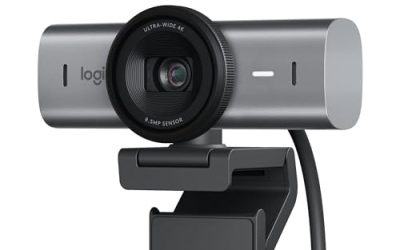
The MX Brio is Logitech’s flagship fixed webcam, and it suits a Mac desk particularly well because its companion software, Logi Options+ and Logi Tune, is fully supported on macOS. It records in 4K at 30 frames per second and drops to 1080p at 60 frames per second, which is useful if your calls are usually sent at 1080p but you want extra detail for cropping or for recorded presentations. Its sensor is the largest Logitech has put in a webcam, with larger pixels that help in dim rooms where a built-in laptop camera turns noisy.
You can switch the diagonal field of view between 90, 78, and 65 degrees in software, so a wide room view, a standard head-and-shoulders shot, and a tighter crop are all available without moving the camera. Dual beamforming microphones with noise reduction focus on your voice, and Show Mode lets you tilt the camera down to share a notebook, sketch, or product on your desk. A built-in privacy shutter rotates closed over the lens, so there is no separate cap to lose.
For Mac users, the practical points are simple: it connects with a single USB-C cable, the mount clips onto a MacBook lid or an external display, and the fine controls in the Logi apps let you adjust white balance, exposure, tint, and vibrance and then save those settings. If you do a mix of client calls, recorded updates, and occasional streaming from the same desk, this is the most complete fixed camera on this list.
Specs
- Brand: Logitech
- ASIN: B0BFJ4CRKD
- Model: 960-001545
- Resolution: 4K Ultra HD at 30 fps; 1080p at 60 fps
- Field of view: 90, 78, or 65 degrees, selectable in software
- Microphones: Dual beamforming, noise-reducing
- Connection: USB-C
- Features: Show Mode, integrated privacy shutter, Logi Options+ and Logi Tune support on macOS
2. Insta360 Link 2 — a gimbal camera that follows you around the desk

The Link 2 is a very different kind of webcam. Instead of a fixed lens, the camera head sits on a two-axis motorised gimbal, so it can pan and tilt to keep you in frame as you stand up, move to a whiteboard, or present standing at a desk. For teachers, coaches, presenters, and anyone who does not sit still on calls, that tracking is the main reason to choose it over a fixed camera.
The image hardware is strong on its own: a 1/2-inch sensor with an f/1.8 lens, phase-detection autofocus, HDR, and 4K recording at 30 frames per second, with 1080p available at 60 frames per second. AI tracking modes can follow a person, frame a group, or hold a desk view for showing documents and objects. Gesture controls let you start tracking or zoom without returning to the keyboard, and the built-in microphone uses AI noise cancelling to reduce background sounds.
Privacy is handled physically: the camera tilts its lens down after a short idle period or when you point it down, so it is visibly not watching the room. It connects to a Mac over USB-C, works with the usual meeting apps, and Insta360’s Link Controller software for macOS adds framing, exposure, and tracking controls. It is the largest and most complex camera here, and it needs its gimbal clearance above your display, but for movement-heavy calls nothing else in this guide does the same job.
Specs
- Brand: Insta360
- ASIN: B0DF2SL974
- Resolution: 4K at 30 fps; 1080p at 60 fps
- Sensor: 1/2-inch, f/1.8 lens, phase-detection autofocus
- Mount: Two-axis motorised gimbal with AI tracking
- Microphone: Built-in, AI noise cancelling
- Connection: USB-C
- Features: HDR, gesture control, DeskView and presenter modes, automatic privacy tilt
3. OBSBOT Tiny 2 — compact PTZ tracking with voice control

The Tiny 2 takes the tracking idea of a gimbal webcam and shrinks it into a much smaller body. It is a pan, tilt, and zoom camera with AI tracking that can follow you in several modes, including a standard follow mode, a close-up mode, and modes aimed at a desk or a whiteboard. If you present, demonstrate products, or move between a desk and a board during Mac video calls, it keeps the framing work off your to-do list.
Its 1/1.5-inch sensor is large for a webcam, which helps low-light performance, and it offers 4K recording with HDR and up to 60 frames per second at lower resolutions. Autofocus is fast, and the camera can be controlled three ways: with gestures in front of the lens, with voice commands, and through the OBSBOT Center app on macOS, where you can set tracking behaviour, framing, and image adjustments. Dual microphones are built in for call audio when you do not have a separate mic.
On a Mac, setup is a single USB-C connection and the camera is recognised by FaceTime, Zoom, Teams, and Meet without drivers. The Tiny 2 makes most sense if you will actually use the tracking and the hands-free controls; if you sit in one place all day, a fixed camera gives you the same call quality with less to configure. For presenters and creators working from a Mac, though, it is a genuinely capable alternative to the Link 2 in a smaller package.
Specs
- Brand: OBSBOT
- ASIN: B0C3B6ZR1V
- Resolution: 4K, with HDR; up to 60 fps at lower resolutions
- Sensor: 1/1.5-inch CMOS
- Mount: Motorised PTZ gimbal with multi-mode AI tracking
- Microphones: Dual built-in microphones
- Connection: USB-C
- Features: Gesture control, voice control, OBSBOT Center app for macOS
4. Logitech Brio 500 — a dependable 1080p camera with auto-framing

Not every Mac setup needs 4K. Most meeting platforms send your video at 720p or 1080p, and the Brio 500 is built squarely for that reality. It is a Full HD 1080p camera at 30 frames per second, with 720p at 60 frames per second, and it focuses its effort on exposure and framing rather than raw resolution. RightLight 4 automatic light correction brightens a face in a backlit or dim room, and RightSight auto-framing keeps you centred and cropped sensibly when you lean or shift.
Dual noise-reducing microphones handle everyday call audio, and Show Mode, shared with the MX Brio above, lets you tilt the camera down to show paperwork or a sketch on your desk. The privacy shutter is built in and twists closed over the lens. The mount attaches to a laptop lid or monitor and includes a removable adapter, and the camera connects over USB-C, which suits recent MacBooks without a dongle for the camera itself.
Logi Tune on macOS handles field-of-view choices, zoom, focus, and image settings. Choose the Brio 500 if your calls are standard meetings on Zoom, Teams, Meet, or FaceTime and you want a clear step up from a built-in camera without paying for 4K hardware or a tracking gimbal you will never use. It is also a sensible second camera for a home office that already has a good microphone and lighting.
Specs
- Brand: Logitech
- ASIN: B09QW1WVRD
- Resolution: 1080p at 30 fps; 720p at 60 fps
- Field of view: 90 degrees, adjustable in software
- Microphones: Dual, noise-reducing
- Connection: USB-C
- Features: RightLight 4 light correction, RightSight auto-framing, Show Mode, built-in privacy shutter
5. Anker PowerConf C200 — a compact 2K option with adjustable framing

The PowerConf C200, sold under Anker’s AnkerWork line, sits between basic 1080p cameras and the 4K models above. Its 2K resolution, 2560 by 1440 at 30 frames per second, gives a noticeably sharper picture than 1080p on platforms and recordings that can use it, while the camera itself stays small enough to live on a MacBook lid or travel in a laptop bag.
Its most useful feature for calls is the adjustable field of view: you can choose 65, 78, or 95 degrees in the AnkerWork software, moving from a tight head-and-shoulders crop to a wider shot that includes a second person or more of the room. Dual stereo microphones use AI noise cancelling to cut keyboard and room noise, low-light correction helps in evening calls, and a built-in privacy cover slides over the lens when you are done.
Compatibility is broad and explicitly includes Mac: the C200 works with macOS 10.11 and later and with Zoom, Teams, FaceTime, Skype, and Google Hangouts and Meet. It connects over USB-C. If you want better-than-1080p clarity, framing flexibility, and a physical privacy cover in a compact, straightforward camera — and you do not need 4K, a gimbal, or advanced colour controls — the C200 covers the brief well.
Specs
- Brand: Anker
- ASIN: B09MFMTMPD
- Model: A3369
- Resolution: 2K (2560 x 1440) at 30 fps
- Field of view: 65, 78, or 95 degrees, adjustable in software
- Microphones: Dual stereo, AI noise cancelling
- Connection: USB-C
- Features: Low-light correction, built-in privacy cover, macOS 10.11 and later support
How to choose a webcam for Mac video calls
Start with how your calls actually look, not with the biggest resolution number. If you mostly join meetings that platforms transmit at 720p or 1080p, a good 1080p or 2K camera with strong light correction, like the Brio 500 or the PowerConf C200, will look better than a poorly lit 4K camera. Choose 4K, as on the MX Brio, Link 2, or Tiny 2, if you record presentations, crop into your frame, stream, or want headroom for larger, sharper self-view layouts.
Next, decide between fixed and tracking. A fixed camera is simpler, smaller, and needs no setup beyond framing it once. A gimbal camera — the Link 2 or Tiny 2 — earns its place only if you stand, present, demonstrate, or move around; for a seated desk worker it adds cost and complexity with little benefit. Check gimbal clearance above your display before ordering a tracking model.
Check Mac-specific details before buying. Prefer USB-C models for recent MacBooks so the camera does not consume a hub port through an adapter. Confirm the companion app you care about runs on macOS: Logi Tune and Logi Options+ for Logitech, Link Controller for Insta360, OBSBOT Center for OBSBOT, and AnkerWork for Anker. All five cameras here are plug-and-play for basic video in FaceTime, Zoom, Teams, and Meet, but framing, zoom, firmware, and image controls live in those apps. Also check macOS privacy settings after plugging in: System Settings, Privacy and Security, Camera and Microphone, and grant access to your meeting app.
Finally, think about audio, light, and privacy as a system. A webcam microphone is convenient, but a separate USB microphone or headset will still sound better in a noisy room. Facing a window or a soft light source does more for your picture than any sensor upgrade. And a physical shutter or privacy cover — present in some form on every pick here — is worth having on a camera that points at you all day.
FAQ
Do these webcams work with FaceTime on a Mac?
Yes. macOS treats a USB webcam as a camera source, and FaceTime lets you select it from its Video menu. The same applies to Zoom, Teams, Meet, and Webex, where you choose the camera in the app’s video settings.
Will a 4K webcam make my Zoom calls look 4K?
Usually not. Most meeting platforms limit sent video to 720p or 1080p depending on the plan and meeting type. A 4K camera still helps because downscaled video looks cleaner and you can crop without losing sharpness, and recordings made locally can use the full resolution.
Do I need to install software to use one of these on macOS?
No for basic use — all five are plug-and-play. Install the maker’s Mac app only if you want framing controls, zoom, firmware updates, tracking settings, or fine exposure and colour adjustments.
Can I use an external webcam with a MacBook lid closed?
Yes, with an external display and power connected, a MacBook can run with the lid closed and use the external webcam as its camera. Position the webcam on top of that display so your eye line stays natural.
Is a tracking webcam worth it for normal desk calls?
For seated calls, generally no. Tracking pays off when you present standing, teach, demonstrate objects, or move between a desk and a board. If you sit in one chair all day, spend the same budget on a better fixed camera, light, or microphone instead.
Write Your Review
No reviews yet. Be the first to share your experience!