
To reset an iPhone, first decide which “reset” you need. A restart turns the phone off and on. A force restart reboots a frozen iPhone. Neither one deletes anything. Resetting settings brings back default preferences but keeps your data. Only “Erase All Content and Settings”, the factory reset, wipes the phone. It cannot be undone without a backup.
- What Each iPhone Reset Does (and Whether It Erases Data)
- Step 1: Do a Normal Restart
- Step 2: Force Restart a Frozen iPhone
- Step 3: Reset Settings Without Erasing Your Data
- How to Factory Reset an iPhone Safely
- How to Reset an iPhone When You Forgot the Passcode
- Have the Phone Charged and a Cable Ready
- What to Do Before Selling or Trading In Your iPhone
- Troubleshooting Common Reset Problems
- Frequently Asked Questions
People mix these up, and some wipe a phone that only needed a reboot. Below, the options run from gentlest to most drastic. Apple changes menu names and button behavior between models and iOS versions, so the labels on your phone may differ slightly from the ones here.
What Each iPhone Reset Does (and Whether It Erases Data)
| Reset type | When to use it | Erases your data? | What changes |
|---|---|---|---|
| Restart | Minor glitches, laggy apps | No | Nothing. The phone powers off and back on |
| Force restart | Frozen or black screen, touch not responding | No | Nothing. It forces a reboot |
| Reset Network Settings | Wi-Fi, Bluetooth, cellular or VPN problems | No personal data | Saved Wi-Fi passwords, Bluetooth pairings and VPN settings are removed |
| Reset All Settings | Odd behavior a restart does not fix | No personal data | Preferences return to default. Photos, apps and messages stay |
| Erase All Content and Settings | Selling, trading in, last-resort fix | Yes, everything | Apps, photos, messages, accounts and settings are deleted |
| Restore via recovery mode | Forgotten passcode, phone will not boot | Yes, everything | iOS is reinstalled on a blank phone |
Step 1: Do a Normal Restart
A restart clears temporary memory and closes stuck background processes. It fixes more than people expect and doesn’t touch your data.
- On Face ID iPhones, hold the side button and either volume button until the power-off slider appears. On Home-button models, hold the side (or top) button.
- Drag the slider, wait about 30 seconds, then hold the side button until the Apple logo appears.
- If the buttons are unreliable, use Settings > General > Shut Down.
If the phone is still sluggish after a restart, the cause may be storage or battery wear. See what to do when iPhone storage is full and what your battery health percentage means.
Step 2: Force Restart a Frozen iPhone
When the screen won’t respond and the slider never appears, use a force restart. It does not erase data. The button sequence depends on the model:
- iPhone 8 and later: Apple’s documented sequence is to press and quickly release volume up, then volume down, then hold the side button until the Apple logo appears. Keep holding if the power-off slider flashes up. If that doesn’t work, check Apple’s support page for your model.
- iPhone 7 and 7 Plus: hold volume down and the side button together until you see the logo.
- iPhone 6s, first-generation SE and earlier: hold the Home button and the side (or top) button together.
The most common mistake is letting go of the side button too early.
Step 3: Reset Settings Without Erasing Your Data
On recent iOS versions, go to Settings > General > Transfer or Reset iPhone > Reset. Older versions show a plain “Reset” menu under General. The options in that Reset list don’t delete photos or apps. The erase option sits on the same screen, so read carefully before you tap.
Reset Network Settings
Use this for Wi-Fi that keeps dropping, Bluetooth that won’t pair, or cellular data that stopped working. It removes saved networks and passwords, Bluetooth pairings and VPN profiles, so have your Wi-Fi password ready. It’s also worth trying before you troubleshoot AirPods that won’t connect.
Reset All Settings
This puts every system preference back to default, including wallpaper, notifications, privacy permissions and keyboard settings. Your photos, messages and apps stay. It’s a sensible middle step before you consider erasing.
How to Factory Reset an iPhone Safely
Erase All Content and Settings deletes photos not synced to iCloud, messages, apps and their data, passwords stored only on the device, Apple Pay cards, health data, and all your accounts. Phones with an eSIM may ask whether to keep or remove it. If you remove it, you may lose cellular service until your carrier reissues it.
This cannot be reversed. Without a backup, the data is gone for good.
Pre-Reset Checklist
| Task | Why it matters | How to check |
|---|---|---|
| Make a verified backup | This is the only way to get your data back | Confirm the last successful backup date in iCloud settings or in Finder / Apple Devices |
| Know your Apple ID password | You need it to turn off Find My and to sign in again | Sign in on another device first |
| Turn off Find My | Otherwise Activation Lock blocks the next owner | Tap your name in Settings, then Find My |
| Unpair an Apple Watch | It backs up the watch and releases its lock | Use the Watch app |
| Save authenticator codes | Some two-factor apps don’t restore automatically | Use the app’s export feature |
| Charge the phone | Losing power mid-erase can cause problems | Plug it in first |
Our guide on how to back up your iPhone shows how to confirm the backup actually finished, not just started. For more on Activation Lock, see how Find My works.
Running the Erase
- Open Settings > General > Transfer or Reset iPhone (or Reset on older iOS).
- Tap Erase All Content and Settings. The phone may offer to finish an iCloud upload first.
- Enter your passcode and Apple ID password. This signs you out and turns off Activation Lock.
- Keep the phone plugged in until the “Hello” setup screen appears.
How to Reset an iPhone When You Forgot the Passcode
You can’t remove a forgotten passcode without erasing the phone. Both routes below wipe it.
On-device erase: On newer iOS versions, after several wrong passcode attempts the lock screen may show an option such as “Forgot Passcode?” or “Erase iPhone”. This usually needs a network connection and your Apple ID password. The wording depends on your iOS version.
Recovery mode via a computer:
- On a Mac, open Finder. On Windows, open the Apple Devices app or iTunes.
- Turn off the iPhone and connect it with a cable.
- Use your model’s force-restart sequence, but keep holding past the Apple logo until the recovery screen appears.
- Choose Restore. The computer downloads iOS and erases the phone.
- Restore from your backup and sign in with your Apple ID.
Have the Phone Charged and a Cable Ready
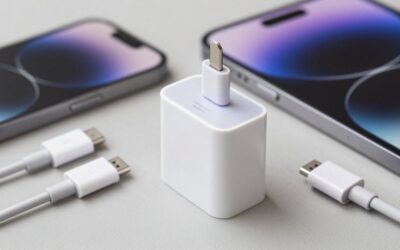
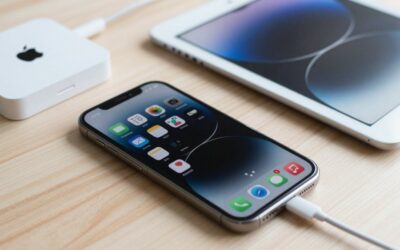
Recovery mode needs steady power and a steady data connection. Worn or uncertified cables often cause “iPhone disconnected” errors partway through a restore. Use a certified cable that fits your phone: USB-C on recent models, Lightning on older ones.
![2Pack for iPhone14/13/12 Fast Charger Cable 6ft [Apple MFi Certified], USB Type C to Lightning Cable 6 Foot Apple iPhone Charging Cord for iPhone14 13 12 Pro XR XS Plus](https://m.media-amazon.com/images/I/31cWTG8hVDL._SL400_.jpg)

![iPhone Charger 3Pack 6FT USB C to Lightning Cable [Apple MFi Certified]](https://m.media-amazon.com/images/I/3121rgfUmnL._SL400_.jpg)


For help choosing one, see our iPhone charger and cable guide.
What to Do Before Selling or Trading In Your iPhone
- Back up the phone and confirm the backup completed.
- Unpair your Apple Watch.
- If you’re switching to Android, deregister your number from iMessage.
- Erase All Content and Settings with your Apple ID password so Activation Lock turns off.
- Remove the SIM card, or have your carrier transfer your eSIM.
- Check your Apple account’s device list and remove the old iPhone if it still appears.
See how to get the most for an iPhone trade-in for what buyers check first.
Troubleshooting Common Reset Problems
- Force restart does nothing: Charge for 30 to 60 minutes. A fully drained battery can look like a freeze.
- Stuck on the Apple logo: Enter recovery mode and try Update first, which reinstalls iOS without erasing.
- Computer doesn’t see the iPhone: Swap the cable, try another port, and tap “Trust” on the phone if prompted.
- Activation Lock after erasing: Sign in with the Apple ID that was on the phone. For a used phone, the previous owner has to remove it.
- Erase option greyed out: Screen Time or work/school device management may be blocking it.
Frequently Asked Questions
Does a force restart delete anything on my iPhone?
No. A force restart only reboots the phone, and your photos, messages, apps and settings stay exactly as they were. The only thing you might lose is unsaved work inside an app that was open at the time, such as a half-typed note. The same thing would happen if the battery died suddenly.
Is “Reset All Settings” the same as a factory reset?
No. Reset All Settings only puts preferences like wallpaper, privacy permissions and network settings back to default, and your data stays. Erase All Content and Settings is the factory reset that deletes everything. They appear on the same screen, so read the label twice before you tap.
Can I recover data after a factory reset without a backup?
Realistically, no. iPhones encrypt their storage, and an erase discards the encryption keys, so the old data can no longer be read. Recovery tools that promise otherwise can only pull from an existing iCloud or computer backup. That’s why you should confirm a completed backup before erasing.
Why does the phone ask for my Apple ID password when erasing?
Your password signs the phone out of your account and turns off Find My, which removes Activation Lock. If you skip that step, for example by restoring through recovery mode, the phone stays tied to your account. The next owner won’t be able to set it up until you remove it remotely.
How long does a factory reset take on an iPhone?
Erasing from Settings usually takes several minutes, depending on the model and how much was stored. A recovery mode restore takes longer because the computer has to download iOS first, and that can be slow on a weak connection. Keep the phone plugged in until you see the setup screen.








Write Your Review
No reviews yet. Be the first to share your experience!