
To back up an iPhone, turn on iCloud Backup in Settings (tap your name, then iCloud, then iCloud Backup) or connect it to a Mac or Windows PC and back up through Finder or the Apple Devices app. For the most complete copy, choose an encrypted computer backup, which also saves passwords and Health data.
- iCloud vs Computer Backup: Which Should You Use?
- How to Back Up an iPhone to iCloud
- How to Back Up an iPhone to a Mac or Windows PC
- Why Encrypted Local Backups Matter
- What Gets Saved in an iPhone Backup (and What Doesn’t)
- How to Check That a Backup Actually Completed
- How Often Should You Back Up?
- Restoring a Backup to a New iPhone
- Troubleshooting Common Backup Problems
- Frequently Asked Questions
What most people get wrong is what a backup contains. Plenty of data is synced to iCloud separately and never enters the backup, and an unencrypted computer backup skips your most sensitive information.
Note: Apple renames menus between iOS and macOS versions, so exact labels on your device may vary slightly.
iCloud vs Computer Backup: Which Should You Use?
You do not have to pick one. Let iCloud run nightly, and make an encrypted computer backup before big changes like a major iOS update.
| Factor | iCloud Backup | Computer Backup (Mac or PC) |
|---|---|---|
| Runs automatically | Yes, when charging, locked and on Wi-Fi | Only when you connect and start it (or enable Wi-Fi sync) |
| Storage limit | 5 GB free, paid iCloud+ tiers for more | Limited only by your computer’s free disk space |
| Encryption | Always encrypted by Apple | Optional; you must tick “Encrypt local backup” |
| Passwords and Health data | Handled through iCloud sync rather than the backup file | Included only if the backup is encrypted |
| Restore speed | Depends on your internet connection | Usually faster over a cable |
| Works without a computer | Yes | No |
| Best for | Hands-off daily protection | Full snapshots before updates or a phone swap |
How to Back Up an iPhone to iCloud
Step 1: Turn on iCloud Backup
- Open Settings and tap your name at the top.
- Tap iCloud, then iCloud Backup (on some versions it is listed under “Saved to iCloud” or “Device Backups”).
- Switch on Back Up This iPhone.
- Tap Back Up Now to run the first backup immediately instead of waiting overnight.
After that, it backs up automatically whenever it is charging, locked and on Wi-Fi.
Step 2: Understand the 5 GB free limit
Every Apple Account gets 5 GB of free iCloud storage, and that space is shared by everything: device backups, iCloud Photos, iCloud Drive, Mail and Messages. A single iPhone’s app data can outgrow 5 GB on its own, and iCloud Photos usually fills it fast. See our guide to freeing up space on a full iPhone for the on-device side.
Step 3: Fix a backup that fails for lack of space
When iCloud says there is not enough storage to complete the backup, you have four options:
- Shrink the backup. Go to Settings, your name, iCloud, then Manage Account Storage (or Manage Storage) and open Backups. Select this iPhone and switch off apps you do not need backed up, such as video apps or games whose data lives on their own servers.
- Delete old device backups. The same screen often lists backups from phones and iPads you no longer own. Removing them can free gigabytes.
- Upgrade to iCloud+. Apple sells several monthly tiers, from a small entry plan to multi-terabyte family-shareable plans. Compare current iCloud+ storage plans before choosing, since pricing varies by country.
If you are backing up only to move to a new iPhone, look for Prepare for New iPhone under Settings, General, Transfer or Reset iPhone. Apple temporarily grants extra iCloud storage for a limited period so the migration backup can complete even if you are over your limit.
How to Back Up an iPhone to a Mac or Windows PC
On a Mac (Finder)
- Connect the iPhone with a cable and unlock it. Tap Trust if asked, then enter your passcode.
- Open Finder and select your iPhone in the sidebar under Locations. (Macs running very old versions of macOS use iTunes instead.)
- In the General tab, choose “Back up all of the data on your iPhone to this Mac.”
- Tick Encrypt local backup and set a password you will remember.
- Click Back Up Now and leave the cable connected until it finishes.
On a Windows PC
Install Apple’s Apple Devices app from the Microsoft Store (older PCs can still use iTunes for Windows). Connect and unlock the iPhone, select it in the app, choose to back up all data to this computer, enable encryption and click Back Up Now.
Where the backup is stored, and why an external drive helps
Finder saves backups inside your user Library folder on the Mac’s internal drive, and there is no simple built-in option to point it at an external disk. A full backup can take tens of gigabytes, a squeeze on a base-storage MacBook. The practical workaround: keep the backup on the Mac and let Time Machine copy it to an external SSD, which also protects you if the Mac fails.

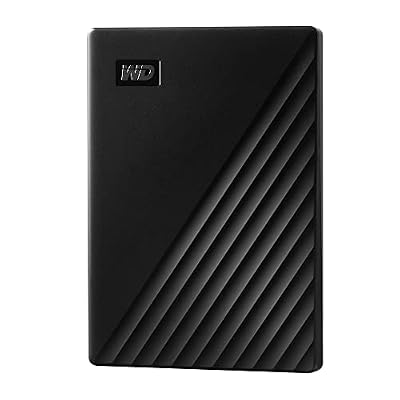
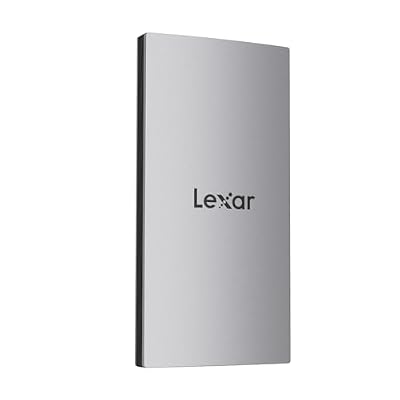


If you are shopping for one, our roundup of the best external SSDs for Mac explains which capacities make sense for Time Machine.
Why Encrypted Local Backups Matter
An unencrypted computer backup leaves out the data Apple considers sensitive. Turning on encryption adds:
- Saved passwords and keychain items
- Wi-Fi network settings
- Website history
- Call history
- Health and activity data
- Some app data that developers flag as sensitive
Restore from an unencrypted backup and you will re-enter Wi-Fi passwords and app logins, and Health history may be missing. The one catch: if you forget the encryption password, that backup cannot be restored. Store it in a password manager or Apple’s Passwords app.
What Gets Saved in an iPhone Backup (and What Doesn’t)
A backup is not a mirror of your phone. Anything already in iCloud re-downloads when you sign in, so Apple does not duplicate it.
| Data type | In the backup? | Notes |
|---|---|---|
| App data and documents | Yes | Apps themselves re-download from the App Store |
| Settings, Home Screen layout, wallpaper | Yes | Restored as they were |
| Photos and videos | Only if iCloud Photos is off | With iCloud Photos on, they sync separately |
| Messages | Only if Messages in iCloud is off | With it on, conversations sync separately |
| Contacts, Calendars, Notes, Reminders | Usually not | Synced through iCloud or your email account |
| Passwords and Health data | Encrypted computer backups only | Also syncable via iCloud Keychain and Health |
| Face ID or Touch ID | No | Set up again on the new phone |
| Apple Pay cards | No | Re-add cards in Wallet |
| Apple Music and purchased media | No | Re-downloads from Apple’s servers |
| Gmail, Outlook and other cloud data | No | Lives with that provider |
The trap here: people delete photos from a full iPhone believing “they are in the backup.” If iCloud Photos is on, deleting a photo on the phone deletes it everywhere. Read our explainer on how iCloud Photos sync works before you clear space that way.
How to Check That a Backup Actually Completed
- iCloud: Settings, your name, iCloud, iCloud Backup. Below the Back Up Now button you should see the date and time of the last successful backup.
- Mac: Select the iPhone in Finder. The General tab shows the time of the last backup to this Mac. Click Manage Backups to see every stored backup; a lock icon marks encrypted ones.
- Windows: The Apple Devices app shows the latest backup time in the device’s backup section.
How Often Should You Back Up?
Leave iCloud Backup on so it runs daily without thought. On top of that, make a manual encrypted computer backup before installing a major iOS release, before a repair or battery replacement, and before trading in or resetting the phone.
Restoring a Backup to a New iPhone
- Turn on the new iPhone and follow setup until you reach the Transfer Your Apps and Data screen.
- Choose From iCloud Backup, From Mac or PC, or a direct transfer from your old iPhone if it is nearby.
- Pick the most recent backup and enter the encryption password if prompted.
- Keep the phone on Wi-Fi and power afterward while apps and photos finish downloading.
For the full walkthrough, including Quick Start, see our guide on transferring data to a new iPhone.
Troubleshooting Common Backup Problems
- “Backup could not be completed”: check Wi-Fi, free up iCloud space, and restart the phone.
- Computer does not see the iPhone: unlock the phone, tap Trust, try a different cable or port, and update macOS or the Apple Devices app.
- Restore says the iOS version is too old: a backup can only be restored to an iPhone running the same or a newer iOS version. Update the new phone first.
Frequently Asked Questions
Does an iCloud backup include my photos?
Only if iCloud Photos is turned off. When iCloud Photos is on, your library is already stored in iCloud and syncs separately, so Apple leaves it out of the backup. They still count against the same storage allowance as your backups.
Is 5 GB of free iCloud storage enough to back up an iPhone?
For most people, no. The 5 GB is shared across backups, photos, iCloud Drive and Messages, so it fills quickly. You can stretch it by excluding large apps from the backup and deleting old device backups, but most active users either upgrade to an iCloud+ tier or back up to a computer.
What happens if I forget my encrypted backup password?
You cannot restore that backup, and Apple cannot recover the password for you. You can reset the encryption password from the iPhone by resetting all settings, which lets you create new encrypted backups, but older backups made with the forgotten password remain unusable. Save the password somewhere safe.
Can I back up my iPhone to an external hard drive?
Not directly through Finder’s standard options, which save backups to the Mac’s internal drive. The easiest reliable method is to back up to the Mac as usual and let Time Machine copy it to an external SSD or hard drive. That also gives you a second copy if the Mac fails.
Does backing up my iPhone save my text messages?
It depends on Messages in iCloud. If that setting is on, your conversations sync through iCloud and are not duplicated in the backup; they reappear when you sign in on a new phone. If it is off, messages are included in both iCloud and computer backups, so restoring brings them back.







Write Your Review
No reviews yet. Be the first to share your experience!