
⚡ Key Takeaways
- Why Backing Up Matters
- Method 1: Back Up to iCloud (Automatic)
- Method 2: Back Up to a Computer (Local)
- iCloud vs. Computer Backup: Which Should You Use?
- What Gets Backed Up
- Verifying and Managing Backups
- Backing Up an iPad
- Restoring From a Backup
- Common Backup Mistakes to Avoid
- How Long to Keep Old Backups
- Top-Rated Picks
- Related Guides
- Frequently Asked Questions
- Final Thoughts
- Related Articles
- Related Guides
- An iPhone holds an enormous amount of irreplaceable data.
- iCloud backup is the easiest option because once it's on, it runs by itself whenever your phone is charging, locked, and on Wi-Fi — typically overnight.
- A computer backup stores everything locally and doesn't depend on iCloud storage limits.
- The smartest approach is to use both: iCloud for daily, hands-off protection and an occasional encrypted computer backup as a belt-and-suspenders safeguard.
Knowing how to back up your iPhone is the single most important habit you can build as an Apple user, because a backup is the difference between a lost phone being a minor inconvenience and a genuine disaster. Photos of your kids, years of messages, app data, settings, and contacts all live on a device that can be dropped, soaked, stolen, or simply fail. Apple gives you two solid ways to protect everything — iCloud backups that run automatically in the cloud, and computer backups you control locally — and you can use both. This guide explains exactly how each method works, how to set them up, and how to verify your data is actually safe.
As an Amazon Associate we earn from qualifying purchases at no extra cost to you. Product prices and availability are accurate as of the date shown and are subject to change.


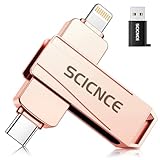
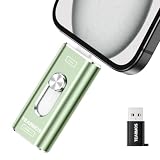

Quick answer: Our top pick in 2026 is the Runs automatically — our #1 rated choice. See the full ranked comparison, alternatives and buying advice below.
Why Backing Up Matters
An iPhone holds an enormous amount of irreplaceable data. Unlike a document you can re-download, your camera roll and message history exist nowhere else unless you’ve backed them up. A current backup means you can restore everything to a new phone in minutes after an upgrade, theft, or accident. The goal is simple: never lose more than a day’s worth of data, no matter what happens to the physical device.
Method 1: Back Up to iCloud (Automatic)
iCloud backup is the easiest option because once it’s on, it runs by itself whenever your phone is charging, locked, and on Wi-Fi — typically overnight.
- Open Settings and tap your name at the top.
- Tap iCloud, then iCloud Backup.
- Toggle Back Up This iPhone on.
- Tap Back Up Now to run the first backup immediately while on Wi-Fi.
The first backup can take a while depending on how much data you have and your internet speed. After that, incremental backups are fast because only new and changed data uploads.
The iCloud Storage Catch
Apple gives every account only 5 GB of free iCloud storage, which fills up almost instantly on a modern iPhone. If backups stop working, you’ve likely run out of space. You can either trim what gets backed up (Settings > your name > iCloud > Manage Account Storage) or upgrade to iCloud+ for 50 GB, 200 GB, or 2 TB at monthly tiers. For most people, the 50 GB plan is plenty and costs less than a coffee per month.
Method 2: Back Up to a Computer (Local)
A computer backup stores everything locally and doesn’t depend on iCloud storage limits. It’s also faster to restore from and can be encrypted to include health data and saved passwords.
- Connect your iPhone to a Mac or PC with a Lightning cable (or USB-C cable on newer models).
- On a Mac, open Finder and select your iPhone in the sidebar. On Windows, open the Apple Devices app or iTunes.
- Choose Back up all of the data on your iPhone to this computer.
- Check Encrypt local backup and set a password — this is what lets the backup include passwords, Wi-Fi, and Health data.
- Click Back Up Now and leave the phone connected until it finishes.
A reliable, undamaged cable matters here — a flaky cable can cause the backup to fail partway through. If your transfers keep dropping, it may be time to replace a worn-out cord.
iCloud vs. Computer Backup: Which Should You Use?
| Feature | iCloud Backup | Computer Backup |
|---|---|---|
| Runs automatically | Yes (nightly) | No (manual) |
| Needs Wi-Fi | Yes | No (cable) |
| Storage cost | 5 GB free, then paid | Free (uses your disk) |
| Restore from anywhere | Yes | Only at that computer |
| Includes Health/passwords | Yes | Only if encrypted |
| Speed to restore | Depends on internet | Fast (local) |
The smartest approach is to use both: iCloud for daily, hands-off protection and an occasional encrypted computer backup as a belt-and-suspenders safeguard.
What Gets Backed Up
An iPhone backup captures app data and settings, Home Screen layout, messages (including iMessage and SMS), ringtones, and your device settings. Photos and videos are backed up if iCloud Photos is off; if iCloud Photos is on, your library lives in iCloud separately rather than inside the backup. Data already stored in the cloud — like contacts, calendars, and notes synced to iCloud — doesn’t need to be in the backup because it’s already safe in the cloud.
Verifying and Managing Backups
- Check the date. In Settings > your name > iCloud > iCloud Backup, confirm the “Last successful backup” date is recent.
- Keep your phone charged. iCloud backups only run while charging — an iPhone wireless charger on your nightstand makes nightly backups effortless.
- Delete old device backups you no longer need to free iCloud space under Manage Account Storage.
- Test a restore only when setting up a new device, never on your active phone, since restoring overwrites current data.
Backing Up an iPad
The process is identical on iPad — both iCloud and computer backups work the same way. If you rely on your iPad for work, keep it charged with a fast USB-C charger for iPad so automatic iCloud backups complete overnight, and protect the hardware itself with a quality iPad case so a drop never costs you both the device and your data.
Restoring From a Backup
A backup is only useful if you can actually restore from it, so it helps to know how that works before you ever need it. When you set up a new or erased iPhone, the setup assistant asks how you want to transfer your data. You can choose Restore from iCloud Backup, which downloads everything over Wi-Fi, or Restore from Mac or PC, which pulls from your local backup over a cable. There’s also a direct device-to-device transfer option if you have both your old and new phones together. Whichever you pick, keep the device plugged in and connected throughout — a restore can take anywhere from several minutes to a few hours depending on how much data you have and your connection speed. Apps re-download in the background after the core restore finishes, so the phone may feel sluggish for a little while as it catches up.
Common Backup Mistakes to Avoid
A few avoidable errors leave people with backups that don’t actually protect them when disaster strikes:
- Assuming it’s running when it isn’t. iCloud backup only runs when the phone is charging, locked, and on Wi-Fi. If you never plug in overnight, it may not be backing up at all. Always confirm the last backup date.
- Ignoring a full iCloud. Once your iCloud storage fills up, backups silently stop. The warning is easy to dismiss, but every day without a backup is a day at risk.
- Skipping encryption on computer backups. An unencrypted local backup leaves out Health data and saved passwords, so you’d lose those even after “restoring.” Always check the encrypt box.
- Relying on a single method. If your only backup is corrupted or inaccessible, you’re stuck. Using both iCloud and an occasional computer backup gives you a fallback.
- Forgetting before a trade-in. People erase and hand over a phone before confirming the backup completed, losing data permanently. Always verify first.
How Long to Keep Old Backups
Old backups can accumulate and waste iCloud space, but deleting the wrong one is risky. A good rule is to keep your current device’s most recent backup plus one prior, and remove backups tied to devices you no longer own. Before deleting any backup, make sure a newer one exists for that device. For computer backups, you can keep several historical copies if your hard drive has room, which is handy if you ever need to roll back to an earlier state.
Top-Rated Picks
![Ailun 3 Pack Screen Protector for iPhone 17 / iPhone 16 Pro [6.3 inch] with Installation Frame, Dynamic Island Compatible, Case Friendly[Not for iPhone16/16Plus/16Pro Max/17Pro/17Pro Max/Air]](https://m.media-amazon.com/images/I/711tQq-VhOL._AC_SL400_.jpg)

![Spigen for iPhone 17 Pro Max Case, Ultra Hybrid MagFit [TPU Covered Camera Control] [Anti-Yellowing] [Compatible with Magsafe] - Clear](https://m.media-amazon.com/images/I/51GLXwRKvtL._SL400_.jpg)
Dropped $1.50
![Spigen for iPhone 17 Pro Max Case, Ultra Hybrid MagFit [TPU Covered Camera Control] [Anti-Yellowing] [Compatible with Magsafe] - Frost Black](https://m.media-amazon.com/images/I/61zbspkFCJL._AC_SL400_.jpg)
Prime
Top Rated
Spigen for iPhone 17 Pro Max Case, Ultra Hybrid MagFit [TPU Covered Camera Control] [Anti-Yellowing] [Compatible with Magsafe] – Frost Black
Dropped $1.60

| Product | Brand | Rating | Reviews | Price |
|---|---|---|---|---|
| Ailun 3 Pack Screen Protector for iPhone 17 / iPhone … | Ailun | ★ 4.6 | 1132.9k | $6.98 |
| Ailun Screen Protector for iPhone 16 Plus/iPhone 15 P… | Ailun | ★ 4.6 | 1132.9k | $5.98 |
| Spigen for iPhone 17 Pro Max Case, Ultra Hybrid MagFi… | — | ★ 4.6 | 330.8k | $14.99 |
| Spigen for iPhone 17 Pro Max Case, Ultra Hybrid MagFi… | — | ★ 4.6 | 330.8k | $15.99 |
| Ailun 3 Pack Screen Protector for iPhone 16 Pro [6.3 … | Ailun | ★ 4.5 | 431.5k | $8.98 |
Frequently Asked Questions
How long does an iPhone backup take?
The first iCloud backup can take 30 minutes to several hours depending on data size and internet speed. Later backups are much faster since only changes upload. Computer backups over cable are usually quicker.
Does iCloud back up my photos?
If iCloud Photos is turned on, your photos sync to iCloud separately and aren’t duplicated in the device backup. If it’s off, photos are included in the backup itself. Either way, make sure one of those is active.
Why does my iCloud backup keep failing?
The most common reason is full iCloud storage. Free up space or upgrade your plan. Other causes include weak Wi-Fi or the phone not being plugged in and locked overnight.
Can I back up without Wi-Fi?
iCloud backups require Wi-Fi by default, but a computer backup over a cable works with no internet at all — useful when traveling or in low-coverage areas.
How often should I back up?
Daily is ideal, which iCloud handles automatically. At minimum, back up before any iOS update, before traveling, and before trading in or selling your device.
Final Thoughts
A current backup turns a lost or broken iPhone into a non-event. Turn on iCloud Backup today so it runs every night, and make an encrypted computer backup now and then for extra peace of mind. Five minutes of setup protects years of memories — there’s simply no better return on time you can spend with your phone.
Ready to decide? Our #1 pick for 2026 is the Runs automatically.
Live price & availability on Amazon.
Write Your Review
No reviews yet. Be the first to share your experience!