
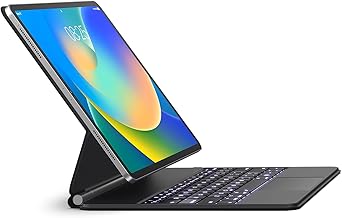
- Top Pick: Keyboard Case for iPad Air 11-inch (M4 2026/M3 2025/M2 2024) & iPad Pro 11 inch(1st/2nd/3rd/4th Generation)–Magic-Style Magnetic Keyboard Case with Multi-Touch Trackpad for 10.9” iPad Air 4th/5th Gen.
- Best Value: Logitech Combo Touch iPad Air 13 inch M2 M3 & M4 – Midnight Black | Detachable keyboard, kickstand, comfortable typing, multi-use mode, compatible with 2024, 2025 and 2026 iPad Air
- Premium Choice: typecase for iPad A16 11th/10th, Air 11 Inch M4/M3/M2/5th/4th Keyboard Case | Magnetic Detachable Keyboard, Portrait/Landscape Modes, Multi-Touch Trackpad, 11-Color Backlit, Ultra-Light, Space Black
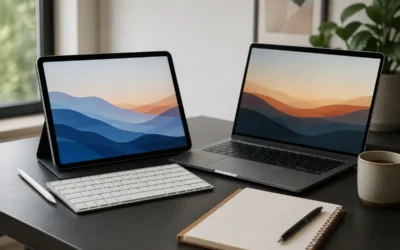
Pair an iPad Air with a good external keyboard and it stops being a media tablet and becomes a genuine productivity machine. With a keyboard attached, iPadOS unlocks a laptop-like workflow: real typing, keyboard shortcuts, trackpad navigation, and multitasking that rivals a lightweight notebook at a fraction of the weight.
- Watch: How to Streamline Your Workflow with an iPad Air and External Keyboard Combo — Video Review
- Choose the Right Keyboard for Your Workflow
- Set Up Trackpad and Gestures
- Master Keyboard Shortcuts
- Use Stage Manager for True Multitasking
- Tips
- Frequently Asked Questions
- Conclusion
- Related Articles
- Related Guides
This guide shows you how to build an efficient iPad Air and keyboard setup, from choosing the right combo to mastering the shortcuts and multitasking gestures that make the difference. Whether you are answering email on the couch or drafting reports at a desk, these steps turn your Air into a focused work tool.
As an Amazon Associate we earn from qualifying purchases at no extra cost to you.


⚡ Save on Your Next PC — Amazon Prime
Prime members get fast free shipping on the systems above, plus early access to Prime Day & Black Friday PC deals. New members get a 30-day free trial.
Watch: How to Streamline Your Workflow with an iPad Air and External Keyboard Combo — Video Review
Choose the Right Keyboard for Your Workflow
The keyboard you pick shapes your entire experience. Combo cases with a trackpad, like the Logitech Combo Touch or Apple Magic Keyboard for iPad Air, give you cursor control and a floating typing angle that mimics a laptop. Lighter detachable options like the typecase or RAYMCRAFT keyboard cases prioritize portability and price, while the ESR multi-mode case balances protection with a magnetic stand.
- Laptop replacement: Apple Magic Keyboard or Logitech Combo Touch for a built-in trackpad and rigid typing angle.
- Portability: A slim detachable like the typecase or RAYMCRAFT case for travel light.
- Value protection: The ESR magnetic case for full coverage plus a keyboard at a moderate price.
Set Up Trackpad and Gestures
If your keyboard includes a trackpad, iPadOS turns into a pointer-driven system. Adjust tracking speed and enable tap-to-click in Settings, then learn the core gestures: a three-finger swipe up opens the App Switcher, three fingers left or right cycle between full-screen apps, and a two-finger tap acts as a right-click. These make navigation feel instant.
- Enable tap-to-click and adjust pointer speed under Settings, General, Trackpad.
- Swipe up with three fingers to reach the App Switcher and Slide Over apps.
- Use two-finger tap for context menus, just like right-clicking on a Mac.
Master Keyboard Shortcuts
Physical keyboards bring desktop-class shortcuts to iPadOS. Hold the Command key in any app to reveal its full shortcut menu. Command-Space launches Spotlight search, Command-Tab switches apps, and Globe-plus-arrow keys move windows in Stage Manager. Committing a handful to memory dramatically cuts the time you spend tapping the screen.
- Hold Command to see every shortcut available in the current app.
- Use Command-Space for Spotlight to open apps and files instantly.
- Learn Command-C, V, and Z, which work system-wide just like on a Mac.
Use Stage Manager for True Multitasking
Stage Manager transforms the iPad Air into a windowed workspace where you can resize and overlap apps and group them into task-based sets. Drag a second app into your workspace to run two side by side, then switch between grouped sets from the strip on the left. With an external keyboard, moving between these windows is fast and keeps related tasks together.
Tips
- Position the Air at eye level using the case’s kickstand or the Magic Keyboard’s floating hinge to reduce neck strain.
- Keep the keyboard’s Smart Connector contacts clean so it stays powered without Bluetooth pairing or charging.
- Assign a Focus mode for work to silence distractions while the keyboard is attached.
- Use text replacement shortcuts in Settings to expand common phrases as you type.
Frequently Asked Questions
Do I need a keyboard with a trackpad?
Not required, but a trackpad greatly speeds up navigation and text selection, making the iPad Air feel far more like a laptop. If budget allows, a Combo Touch or Magic Keyboard is worth it; otherwise a detachable keyboard still boosts typing productivity.
Will any external keyboard work with the iPad Air?
Smart Connector cases pair and power automatically with no charging needed. Bluetooth keyboards also work but require pairing and their own battery. Choose a case sized for your specific iPad Air model, such as the 11-inch M-series versions.
Can the iPad Air really replace a laptop for work?
For writing, email, web tasks, and light editing, yes, especially with Stage Manager and a keyboard. Heavy developers or professionals in desktop-only software may still need a computer for certain tasks.
How do I extend battery life during long typing sessions?
Lower screen brightness, use a Smart Connector keyboard that draws minimal power, and enable Low Power Mode. The Air’s battery comfortably lasts a full workday of document editing.
Conclusion
Streamlining your workflow with an iPad Air and keyboard is a matter of choosing the right combo, setting up trackpad gestures, learning a few essential shortcuts, and leaning on Stage Manager for multitasking. Dial those in and the Air transforms into a nimble, focused productivity device that goes anywhere your laptop would, only lighter.


Write Your Review
No reviews yet. Be the first to share your experience!