
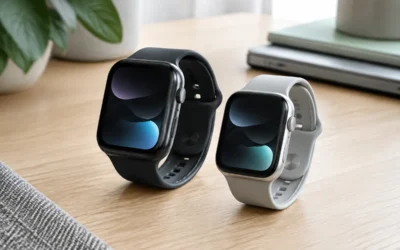
- Top Pick: Apple Watch SE 3 [GPS 40mm] Smartwatch with Starlight Aluminum Case with Starlight Sport Band – S/M. Fitness and Sleep Trackers, Heart Rate Monitor, Always-On Display, Water Resistant
- Best Value: Apple Watch Series 11 [GPS 42mm] Smartwatch with Rose Gold Aluminum Case with Light Blush Sport Band – S/M. Sleep Score, Fitness Tracker, Health Monitoring, Always-On Display, Water Resistant
- Premium Choice: Apple Watch SE 3 [GPS 40mm] Smartwatch with Midnight Aluminum Case with Midnight Sport Band – S/M. Fitness and Sleep Trackers, Heart Rate Monitor, Always-On Display, Water Resistant
Typing your password every time your Mac wakes gets old fast, and Apple’s Auto Unlock feature fixes it elegantly: wear your Apple Watch, sit down at your Mac, and it unlocks the moment you wake it. What surprises many people is that this works with older Apple Watch models too, not just the latest ones, so you may already own everything you need to set it up.
This guide walks through the requirements, the exact steps to enable Auto Unlock, and how to troubleshoot when it does not cooperate, plus a look at which Watch models qualify. Once configured, it also lets your Watch approve app and password prompts, saving you countless keystrokes a day.
As an Amazon Associate we earn from qualifying purchases at no extra cost to you.
![Apple Watch SE 3 [GPS 40mm] Smartwatch with Starlight Aluminum Case with Starlight Sport Band - S/M. Fitness and Sleep Trackers, Heart Rate Monitor, Always-On Display, Water Resistant](https://m.media-amazon.com/images/I/31YiTby0pOL._SL160_.jpg)
![Apple Watch Series 11 [GPS 42mm] Smartwatch with Rose Gold Aluminum Case with Light Blush Sport Band - S/M. Sleep Score, Fitness Tracker, Health Monitoring, Always-On Display, Water Resistant](https://m.media-amazon.com/images/I/31caPPnRysL._SL160_.jpg)
![Apple Watch SE 3 [GPS 40mm] Smartwatch with Midnight Aluminum Case with Midnight Sport Band - S/M. Fitness and Sleep Trackers, Heart Rate Monitor, Always-On Display, Water Resistant](https://m.media-amazon.com/images/I/31Gq8SToFJL._SL160_.jpg)
![Apple Watch Series 11 [GPS 42mm] Smartwatch with Jet Black Aluminum Case with Black Sport Band - S/M. Sleep Score, Fitness Tracker, Health Monitoring, Always-On Display, Water Resistant](https://m.media-amazon.com/images/I/41s72HIk5TL._SL160_.jpg)

![Apple Watch Series 11 [GPS 42mm] Smartwatch with Space Gray Aluminum Case with Black Sport Band - S/M. Sleep Score, Fitness Tracker, Health Monitoring, Always-On Display, Water Resistant](https://m.media-amazon.com/images/I/41yzp82pFOL._SL160_.jpg)


⚡ Save on Your Next PC — Amazon Prime
Prime members get fast free shipping on the systems above, plus early access to Prime Day & Black Friday PC deals. New members get a 30-day free trial.
Watch: How to Unlock Your Mac with Your Apple Watch (Even Older Models) — Video Review
Check the Requirements
Auto Unlock needs a few things aligned. Your Mac and Apple Watch must be signed into the same Apple Account, that account must use two-factor authentication, and both Wi-Fi and Bluetooth must be on. The Watch needs a passcode set and must be unlocked and on your wrist. Older Apple Watch models such as the Series 6 and Series 7 support it, as do the current Series 11 and SE 3, so a renewed older Watch works fine for this purpose.
Enable Auto Unlock in a Minute
On your Mac, open System Settings, then Touch ID and Password (or Login Password on some Macs). Look for the option labeled Apple Watch, showing your Watch by name, and toggle Use your Apple Watch to unlock apps and your Mac. Enter your Mac password to confirm. That is it; the next time you wake the Mac while wearing your unlocked Watch nearby, it signs you in automatically.
Use It Beyond Unlocking
Auto Unlock does more than open the lock screen. With the Watch on your wrist, it can approve requests to view saved passwords, unlock secure notes, install apps, and confirm other authentication prompts by double-clicking the Watch’s side button when asked. This turns your Watch into a convenient physical confirmation for the small security checks that pepper a normal workday.
Troubleshoot When It Fails
- Confirm two-factor: Auto Unlock requires two-factor authentication on your Apple Account; enable it if it is off.
- Toggle the radios: Turn Wi-Fi and Bluetooth off and back on on both devices, since Auto Unlock relies on both.
- Wear and unlock the Watch: The Watch must be on your wrist, unlocked, and passcode-protected for the feature to work.
- Re-enable the setting: If it stops, turn the Apple Watch unlock option off in System Settings, wait a moment, and switch it back on.
Tips
- Keep the Watch’s passcode enabled, or Auto Unlock will not function at all.
- Sign in to iCloud with the same Apple Account on both devices before setting up.
- A renewed older Apple Watch like a Series 6 or 7 is an affordable way to add this feature.
- If unlock is inconsistent, restarting both the Mac and the Watch usually clears the problem.
Frequently Asked Questions
Which Apple Watch models can unlock a Mac?
Auto Unlock works with a wide range of models, including older ones like the Series 6 and Series 7 and current ones like the Series 11 and SE 3, as long as they run a supported watchOS version and meet the setup requirements.
Does my Mac need to be a specific model?
Your Mac needs to support Auto Unlock, which covers most Macs from the last several years, and it must be signed into the same Apple Account as the Watch with two-factor authentication enabled and Wi-Fi and Bluetooth on.
Why won’t my Mac unlock with my Apple Watch?
Common causes are two-factor authentication being off, Wi-Fi or Bluetooth disabled, the Watch not being on your wrist or lacking a passcode, or the setting needing a reset. Check each of these and toggle the option off and on.
Can the Apple Watch approve more than just the login?
Yes. Once enabled, your Watch can approve viewing saved passwords, unlocking secure notes, installing apps, and other authentication prompts by double-clicking its side button when the Mac asks for confirmation.
Conclusion
Unlocking your Mac with your Apple Watch is one of the most satisfying conveniences in the Apple ecosystem, and it works with older Watches too, so you may not need to buy anything new. Line up the requirements, flip the switch in System Settings, and enjoy signing in and approving prompts with nothing more than the Watch already on your wrist.
Write Your Review
No reviews yet. Be the first to share your experience!