
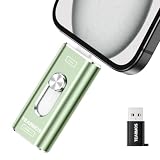
- Top Pick: MFi Certified 512GB Flash Drive Photo Stick for iPhone, External Memory Photo Keeper Storage for Data Saver/Backup/Transfer Files/Picture/Video/iPhone/iPad/iOS/Android/PC (Gray)Available Space: ~484GB
- Best Value: ThePhotoStick® Omni 128GB Photo Backup for iPhone, Android and Computers
- Premium Choice: SCICNCE 256GB Phone Flash Drive Photo Stick, USB Memory Stick for Photo Video Backup & Storage, No APP Required, Compatible with iPhone iPad Android PC, Bright Silver
Between an iPhone and an iPad, most people accumulate thousands of photos scattered across events, screenshots, and duplicates. iCloud Photos keeps that library in sync across every Apple device, but syncing is not the same as organizing. A little structure turns an overwhelming Camera Roll into a searchable, backed-up archive you can actually enjoy.
This guide walks through setting up iCloud Photos correctly, building albums and using Apple’s smart features, cleaning out clutter, and adding a physical backup for true peace of mind. Follow it once and maintenance becomes a two-minute weekly habit.
As an Amazon Associate we earn from qualifying purchases at no extra cost to you.




⚡ Save on Your Next PC — Amazon Prime
Prime members get fast free shipping on the systems above, plus early access to Prime Day & Black Friday PC deals. New members get a 30-day free trial.
Watch: How to Organize Your Photos on iCloud with an iPhone and iPad — Video Review
Set Up iCloud Photos the Right Way
Start by enabling iCloud Photos on both devices under Settings, your name, iCloud, Photos. This creates one unified library, so a photo taken on your iPhone appears instantly on your iPad. Turn on “Optimize Storage” if your devices are short on space, which keeps full-resolution originals in iCloud while storing smaller versions locally.
- Enable iCloud Photos on every device signed into the same Apple ID.
- Choose Optimize Storage to save local space while keeping originals safe in the cloud.
- Confirm you have enough iCloud storage, upgrading the plan if your library outgrows the free 5GB.
Build Albums and Use Smart Features
Albums are how you impose order. Create albums for the categories that matter to you, whether by year, trip, or family member, and drag photos in without removing them from your main library. Apple’s built-in intelligence does heavy lifting too: the Photos app auto-generates Memories, recognizes faces in the People album, and lets you search by objects, places, and text within images.
- Create themed albums and add favorites with the heart icon for quick access.
- Use the People & Pets album to tag and group faces automatically.
- Search naturally, typing terms like “beach,” “receipts,” or a person’s name to find shots fast.
Clean Out Duplicates and Clutter
A tidy library is easier to enjoy and cheaper to store. The Photos app now detects duplicates automatically under Utilities and lets you merge them in a tap. Regularly clear the Screenshots album, delete blurry burst rejects, and empty the Recently Deleted folder to reclaim space.
- Merge duplicates from the Duplicates section under Albums, Utilities.
- Purge screenshots and blurry shots weekly to keep the library lean.
- Empty Recently Deleted to permanently reclaim iCloud storage.
Add a Physical Backup for Safety
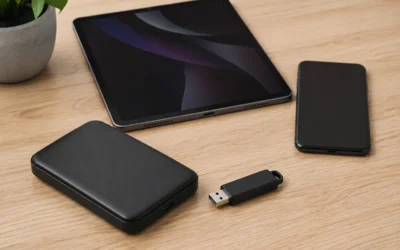
iCloud is reliable, but a single point of failure is never ideal for irreplaceable memories. A photo stick like the ThePhotoStick Omni or an MFi-certified iPhone flash drive lets you copy your entire library to a device you physically control, no subscription required. Plug it into your iPhone or iPad, run the app or drag files across, and store it somewhere safe as an offline archive.
Tips
- Turn on Shared Library or Shared Albums to collaborate on family photos without duplicating everything.
- Add captions to key photos so Apple’s search can find them by keyword later.
- Do a quick monthly cleanup so clutter never piles up into an intimidating project.
- Keep at least two backups of your most precious photos, such as iCloud plus a physical photo stick.
Frequently Asked Questions
Does iCloud Photos back up my pictures or just sync them?
It syncs them across devices and stores them in the cloud, which functions as a backup for most people. However, deleting a photo removes it everywhere, so a separate physical backup adds an extra safety layer.
How much iCloud storage do I need for my photos?
It depends on library size. Casual users often fit within 50GB, while heavy shooters and video creators may need 200GB or more. Check your library size in Settings before choosing a plan.
Will organizing photos on my iPhone update my iPad too?
Yes. With iCloud Photos enabled, any album you create or edit you make syncs to every device on the same Apple ID automatically, usually within moments.
Are photo stick flash drives worth it?
They are a convenient one-time-cost backup for people who want an offline copy without ongoing fees. They complement iCloud rather than replace it, giving you a physical archive you control.
Conclusion
Organizing your photos across iPhone and iPad starts with a correct iCloud Photos setup, then layers on albums, smart search, and regular decluttering to keep everything findable. Finish by adding a physical backup like a photo stick so your memories survive even a cloud mishap. Spend an hour setting this up now, and your entire photo life stays tidy, synced, and safe.



Write Your Review
No reviews yet. Be the first to share your experience!