
- Top Pick: Portable Magnetic Side Mount, Strong Holder to Attach Your iPhone, iPad or Second Screen to Your Laptop or Desktop Computer Monitor, Expand Your MacBook with a Mobile Display
- Best Value: xcivi Magnetic Screen Side Phone Mount for Laptop & Monitor Screen Setup | Magnetic Monitor Side Mount, Strong Magnet Hold, Fit 3.5"-7" Smartphone Tablet, Lightweight Portable, Easy Install
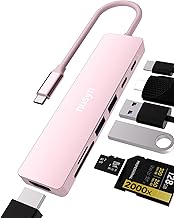
- Premium Choice: USB C to Dual HDMI Adapter 4K@60Hz, 4-in-1 HDMI Splitter for Dual Monitors, 100W PD Charging, USB A Port, Docking Station for MacBook/LenovoYoga/Thinkpad, XPS and More (macOS only Support SST Mode)
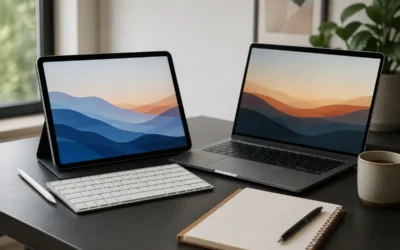
Sidecar turns any compatible iPad into a second display for your Mac, and once you have used it you will wonder how you managed with a single screen. Whether you dock a palette in Photoshop on the iPad while you work on the Mac, or simply spread a browser and a document across two panels, the extra real estate is a genuine productivity boost that costs nothing if you already own both devices.
This guide covers turning Sidecar on, arranging your displays, using Apple Pencil and Touch Bar controls, and the accessories that make a two-screen setup stable and comfortable. We will also look at wired hub and portable-monitor options for the times Sidecar’s wireless mode is not enough.
As an Amazon Associate we earn from qualifying purchases at no extra cost to you.


⚡ Save on Your Next PC — Amazon Prime
Prime members get fast free shipping on the systems above, plus early access to Prime Day & Black Friday PC deals. New members get a 30-day free trial.
Watch: How to Use Sidecar to Extend Your MacBook Display with an iPad — Video Review
Check Compatibility and Requirements
Sidecar works with recent Macs running macOS Catalina or later and iPads on iPadOS 13 or later, typically an iPad Pro, iPad Air, iPad mini 5 or newer, or a 6th-gen iPad. Both devices must be signed into the same Apple Account with two-factor authentication, and both need Wi-Fi and Bluetooth on. For a wired connection, keep them linked with a USB-C or Lightning cable, which also charges the iPad.
Enable Sidecar in a Few Taps
On your Mac, open the Displays menu from Control Center or System Settings, then choose your iPad under the Mirror or Extend option. Within seconds the desktop expands onto the tablet. Choose Extend to gain new space or Mirror to duplicate the screen for presentations. You can drag the iPad’s position in Display arrangement so your cursor flows naturally between screens.
Use Apple Pencil and Sidebar Controls
On the iPad, Sidecar shows a sidebar with Command, Option, Shift, and Control keys plus a Touch Bar strip, even on Macs without a physical Touch Bar. The Apple Pencil becomes a precise pointer, ideal for retouching, drawing, and signing documents in apps that support tablet input. Double-tap gestures and pressure work in creative apps designed for it.
Position Your Screens Ergonomically
- Use a magnetic side mount to clip the iPad beside your MacBook so the second screen sits at the same height as the main display.
- For a permanent desk, a small stand keeps the iPad angled toward you and frees the mount for travel.
- Match the iPad’s brightness to your MacBook so your eyes are not fighting two different exposure levels.
- If you need three panels or a non-Apple tablet, a USB-C dual-HDMI hub or a dedicated portable monitor extends the setup further.
Tips
- Keep both devices within about 30 feet for stable wireless Sidecar, or go wired to eliminate lag entirely.
- Disable Handoff-heavy background tasks on the iPad so the display stream stays smooth.
- Park reference material, chat, or timelines on the iPad and keep your active work on the Mac.
- Use the wired connection when precision matters, since it removes latency and tops up the iPad battery.
Frequently Asked Questions
Do I need a cable to use Sidecar?
No. Sidecar works wirelessly over Wi-Fi and Bluetooth within about 30 feet. A USB-C or Lightning cable is optional and useful when you want zero latency and to keep the iPad charged during long sessions.
Which iPads support Sidecar?
Sidecar supports iPad Pro models, iPad Air 3rd generation and later, iPad mini 5th generation and later, and iPad 6th generation and later, running iPadOS 13 or newer. Both devices must be signed into the same Apple Account.
Can I use the Apple Pencil with Sidecar?
Yes. The Apple Pencil acts as a precise pointer on the iPad screen and enables pressure-sensitive drawing and editing in apps that support it, making it excellent for retouching and markup work.
What if I want a second screen for a non-Apple tablet or a third display?
Sidecar only works between Mac and iPad. For other tablets or additional monitors, use a USB-C to dual-HDMI adapter or a portable laptop monitor, which connect over standard video output instead.
Conclusion
Sidecar is one of the best free features hiding in the Apple ecosystem, transforming an iPad you already own into a genuinely useful second screen for your Mac. Confirm compatibility, enable it in the Displays menu, add a mount or stand for comfort, and you will gain a flexible dual-display workspace whether you are at your desk or on the move.

Write Your Review
No reviews yet. Be the first to share your experience!