
- Top Pick: Ophayapen Smart Pen for Note Taking with Digital Smart Notebook and Writing Board, Real-time Sync for Digitizing,Convert to Text,Storing,Sharing Paper Notes via APP on Smartphone(Android and iOS)
- Best Value: XPPen Note Plus Digital Notebook with Pen Syncs to Phone
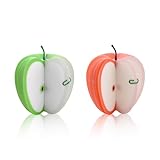
- Premium Choice: Post-it Notes, Apple Shape, Assorted Colors, 2.6×2.6 in, 2 Pads, 75 Sheets/Pad (7350-APL)
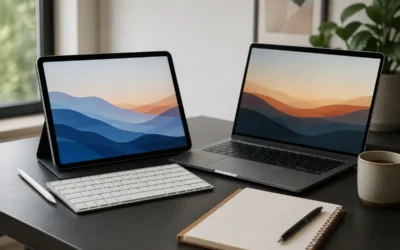
Apple Notes and GoodNotes are two of the best note-taking tools on the iPad, but most people use only a fraction of what they can do. Apple Notes excels at fast, searchable, synced text and quick captures, while GoodNotes shines for handwriting, PDF markup, and beautifully organized notebooks. Used together with a clear system, they cover almost every note-taking need without overlap.
This guide shows how to divide work between the two apps, keep everything findable, and build a workflow that syncs across your iPad, iPhone, and Mac. We will also touch on tools that bridge paper and digital for people who still think best with a pen in hand.
As an Amazon Associate we earn from qualifying purchases at no extra cost to you.





⚡ Save on Your Next PC — Amazon Prime
Prime members get fast free shipping on the systems above, plus early access to Prime Day & Black Friday PC deals. New members get a 30-day free trial.
Watch: How to Streamline Your Digital Notes with Apple Notes and GoodNotes on iPad — Video Review
Decide What Belongs in Each App
The simplest streamlining move is to give each app a job. Use Apple Notes for anything you want typed, searchable, and instantly synced across Apple devices: meeting notes, checklists, quick ideas, and shared family lists. Use GoodNotes for handwritten notes, annotated PDFs, lecture notebooks, and anything where layout and ink matter. Mixing the two by task, rather than duplicating content, prevents the confusion of two half-full note systems.
Organize So You Can Actually Find Things
- Folders and tags in Apple Notes: Group notes into a few broad folders and lean on tags and the search bar rather than deep nesting.
- Notebooks and outlines in GoodNotes: Create a notebook per subject or project and use the built-in outline to jump between sections.
- Consistent titles: Start note titles with a date or project code so both apps sort and search predictably.
- Favorites and pins: Pin active notes to the top so your current work is always one tap away.
Sync Everything Seamlessly
Apple Notes syncs automatically through iCloud, so a note started on your iPhone appears on your iPad and Mac within seconds. GoodNotes also syncs across your devices through iCloud, letting you start a handwritten page on the iPad and review it later on the Mac. Confirm iCloud is enabled for both apps in Settings, and keep one account signed in everywhere so nothing lands in the wrong library.
Bridge Paper and Digital
If you still capture ideas on paper, a smart note-taking pen and digital notebook can digitize your handwriting and sync it to your phone, converting notes to text you can drop into Apple Notes. Devices like the Ophayapen smart pen with a digital notebook, or the XPPen Note Plus digital notebook that syncs to your phone, let longtime pen-and-paper thinkers keep the tactile feel while feeding a searchable digital archive.
Tips
- Pick one app per task type and resist duplicating the same note in both.
- Use search first; both apps find text and even handwriting faster than manual browsing.
- Review and archive finished notebooks monthly so active libraries stay lean.
- Convert important handwritten notes to text so they become searchable across your devices.
Frequently Asked Questions
Should I use Apple Notes or GoodNotes?
Use both, split by task. Apple Notes is best for typed, synced, searchable notes and quick capture, while GoodNotes is best for handwriting, PDF annotation, and structured notebooks. Assigning each a clear role is what streamlines your system.
Does GoodNotes sync across my Apple devices?
Yes. GoodNotes syncs through iCloud, so notebooks you create on the iPad are available on your iPhone and Mac. Make sure iCloud is enabled for the app and you are signed into the same Apple Account everywhere.
Can I search my handwritten notes?
GoodNotes recognizes handwriting and lets you search it, and you can convert handwriting to text. Apple Notes also searches text within notes and scanned documents, so most of your content stays findable.
Can I still use paper and keep digital notes?
Yes. A smart pen and digital notebook capture handwriting on paper and sync it to your phone, converting it to text you can move into Apple Notes. It is a good bridge for people who think best on paper but want a searchable archive.
Conclusion
Streamlining your notes is less about a perfect app and more about a clear system: let Apple Notes handle typed, synced captures and GoodNotes handle handwriting and PDFs, organize with consistent titles and light folders, and keep iCloud syncing everything. Add a smart pen if paper still calls to you, and your ideas will stay organized and findable everywhere you work.
Write Your Review
No reviews yet. Be the first to share your experience!