
For most MacBook and Mac mini owners, the best monitor for Mac is the BenQ MA270U: a 27-inch 4K IPS panel with dual USB-C, 90W power delivery and Mac Color Match, priced in the budget tier. It solves the three things that actually go wrong when you plug a Mac into a third-party screen — charging over the same cable, colour that roughly matches the built-in display, and a pixel density that makes macOS text look clean at sensible viewing distance. If your budget is tighter still, the INNOCN 27″ 4K USB-C Monitor covers the essentials at the lowest tier; if you want HDR, 120Hz and near-complete DCI-P3 coverage, the ASUS ProArt Display 27″ 4K OLED (PA279CDV) is the premium answer. Everyone else — 32-inch desk owners, print and photo editors, dual-display setups — will find a specific match in the seven picks below, each chosen against concrete criteria: P3 gamut coverage, Delta E accuracy, USB-C power delivery wattage, and how macOS actually scales the panel.
- Top 3 Picks
- Quick Comparison
- How We Chose
- 1. INNOCN 27″ 4K USB-C Monitor – Best for the tightest budgets
- 2. BenQ MA270U 27″ 4K – Best for most MacBook owners
- 3. BenQ MA270UP 27″ 4K – Best for buyers who want the newest 27-inch MA revision
- 4. BenQ MA320UP 32″ 4K – Best for large-desk productivity
- 5. ASUS ProArt PA279CRV 27″ 4K – Best for colour-critical work on a budget
- 6. BenQ MA320U 32″ 4K – Best for a big-screen MacBook docking station
- 7. ASUS ProArt Display 27″ 4K OLED (PA279CDV) – Best for HDR and motion work
Quick answer: For most people in 2026, the best monitors for mac is the INNOCN 27" 4K USB-C Monitor — our #1 rated choice. See the full ranked comparison, alternatives and buying advice below.
Top 3 Picks
Best overall: BenQ MA270U. The MA270U is the safest single-monitor purchase for a modern MacBook. The listing confirms 27 inches, 3840 × 2160, dual USB-C, 90W power delivery and Mac Color Match — a combination that means one cable charges a 14-inch MacBook Pro at full speed while carrying 4K video, and the display’s colour profile is designed to sit alongside the MacBook’s own panel rather than fight it. It is the pick that suits the widest range of buyers: students, office workers, developers, and light photo editors who need believable colour without buying a reference display.
Best budget: INNOCN 27″ 4K USB-C Monitor. The INNOCN covers the fundamentals — 27-inch 16:9 IPS at 3840 × 2160, HDR400, and a listed Delta E under 2 — at the lowest price tier here. It is the right choice for a Mac mini or MacBook Air owner who wants a large 4K desktop, a single-cable connection, and money left over. You give up the higher power delivery, the Mac-specific colour matching and the dual-USB-C flexibility of the BenQ, but you keep the resolution and the panel size.
Best premium: ASUS ProArt Display 27″ 4K OLED (PA279CDV). QD-OLED, 120Hz, HDR10 and 99% DCI-P3 with a Delta E figure in the professional range make this the pick for video editors, colourists, and anyone who wants HDR that genuinely looks like HDR. It is the only premium-tier product in this roundup, and the only one where motion clarity and contrast, rather than pixel density, are the headline reasons to buy.
Quick Comparison
Every monitor below is a 4K panel designed to pair with a MacBook or Mac desktop over USB-C. Price tiers are deliberately given as bands rather than figures, because listings move constantly — use the tier to shortlist, then check the current price and the exact power delivery wattage on the spec sheet before you buy.
| Product | Best for | Key specs | Price tier |
|---|---|---|---|
| INNOCN 27″ 4K USB-C Monitor | Lowest-cost 4K desktop for a MacBook or Mac mini | 27″ IPS, 3840 × 2160, 16:9, HDR400, Delta E < 2, USB-C video + power | Budget |
| BenQ MA270U 27″ 4K | Most MacBook owners — the default single-monitor pick | 27″ IPS 4K, dual USB-C, 90W power delivery, Mac Color Match, 60Hz | Budget |
| BenQ MA270UP 27″ 4K | Buyers who want the newest 27-inch MA-series revision | 27″ IPS 4K, dual USB-C, 90W power delivery, Mac Color Match (updated model) | Budget |
| BenQ MA320UP 32″ 4K | Large-desk productivity without a huge footprint penalty | 32″ IPS 4K, dual USB-C, 90W power delivery, Mac Color Match (updated model) | Mid-range |
| ASUS ProArt PA279CRV 27″ 4K | Colour-critical photo, print and design work on a budget | 27″ IPS 4K, 99% DCI-P3 / 99% Adobe RGB class, Delta E < 2, Calman-verified class, USB-C with high-wattage PD | Budget |
| BenQ MA320U 32″ 4K | A 32-inch MacBook docking station for mixed work | 32″ IPS 4K, dual USB-C, 90W power delivery, Mac Color Match, 60Hz | Mid-range |
| ASUS ProArt Display 27″ 4K OLED (PA279CDV) | HDR grading, motion work and premium colour accuracy | 27″ QD-OLED 4K, 120Hz, HDR10, 99% DCI-P3, professional-range Delta E, USB-C | Premium |
How We Chose
This roundup is built from published specification sheets, manufacturer documentation for the Mac-facing features each brand advertises, and the way macOS itself behaves with external displays. No monitor here was tested, benchmarked or handled — the assessment is a desk-research exercise in matching published capabilities to real Mac use cases.
Five criteria decided the shortlist. First, resolution and size: every pick is 3840 × 2160, because that is the resolution at which macOS can run a 2× scaled interface on a 27-inch or 32-inch panel without the text looking soft, and because 4K is where the price-to-pixel ratio is currently strongest. Second, colour: Display P3 coverage matters more than sRGB for Mac work, since macOS treats P3 as its working space, and a listed Delta E under 2 signals that the panel is calibrated at the factory rather than left to chance. Third, power delivery: USB-C wattage is the difference between a genuine one-cable desk and a monitor that merely charges your laptop slowly while you work. Fourth, scaling behaviour and ergonomics — stand height adjustment, VESA compatibility, and how the panel handles the “More Space” scaled modes that most Mac users end up selecting. Fifth, upgrade path: whether the monitor still makes sense if you later add a Mac Studio, a second display, or a colour-critical workflow. Products that only satisfied one or two criteria were left out.
1. INNOCN 27″ 4K USB-C Monitor – Best for the tightest budgets
As an Amazon Associate we earn from qualifying purchases at no extra cost to you.

The INNOCN 27″ 4K USB-C Monitor is the entry point to this list, and it is a genuinely sensible one. It targets the person who has just bought a MacBook Air or a Mac mini, has a normal desk, and wants the jump from a laptop screen or a 1080p panel to a large 4K canvas without spending mid-range money. It is also the pick for a second or third display in a multi-monitor setup, where matching the exact colour pipeline of a primary screen matters less than adding usable desktop area cheaply.
Key specs as listed
- 27-inch 16:9 IPS panel, 3840 × 2160 (4K UHD)
- HDR400 certification class
- Delta E < 2 listed factory accuracy
- Wide-gamut coverage in the P3 family (check the exact figure on the current spec sheet)
- USB-C input carrying video and power delivery, plus standard HDMI/DisplayPort inputs in this class
- Typical 60Hz refresh rate for a 4K IPS panel at this tier
Why it works with a Mac
At 27 inches, 3840 × 2160 works out to roughly 163 pixels per inch. That is not quite Retina density, but macOS handles it well: run the display in its “looks like 1920 × 1080” mode and you get an exact 2× interface with crisp text and generous sizing; run it in “looks like 2560 × 1440” and macOS renders at 5120 × 2880 before downsampling to 3840 × 2160, which gives you more workspace at the cost of a little GPU work and a very slight softening. On any Apple Silicon Mac, that second mode is comfortably fast — the penalty is real but small, and the extra desktop space is usually worth it.
The listed Delta E under 2 is the other meaningful number. It means the panel should arrive close enough to a neutral target that everyday photo editing, thumbnail work and document design look trustworthy without a calibrator. It is not the same promise as full Adobe RGB coverage or hardware calibration, and for print work you should treat it as a starting point rather than a guarantee.
The practical limitation is power delivery. In this tier, USB-C wattage is typically in the 60–65W range, which is fine for a MacBook Air and for a 14-inch MacBook Pro under light load, but will not keep a 16-inch MacBook Pro topped up while it is rendering or compiling. If your workload is heavy, budget for the laptop’s own charger alongside the monitor cable — a small annoyance that costs nothing to plan for.
Pros
- Lowest entry price for a genuine 27-inch 4K desktop
- Listed Delta E < 2 is unusually good for the tier
- Single-cable USB-C connection simplifies a MacBook desk enormously
- Straightforward, no-nonsense spec sheet — few features you will never use
Cons
- Power delivery is unlikely to keep a 16-inch MacBook Pro charged under sustained load
- No Mac-specific colour-matching feature, so the monitor and the MacBook panel will not be tuned to each other out of the box
- Build quality and stand ergonomics are typically the first compromises at this price tier
- No dual USB-C, so docking flexibility is limited compared with the BenQ alternatives
How it compares
The nearest alternative in this list is the BenQ MA270U. Both are 27-inch 4K IPS panels, so the image-making basics — size, resolution, pixel density — are identical. The BenQ buys you three things the INNOCN does not: 90W power delivery instead of the mid-60W class, dual USB-C ports for a cleaner dock arrangement, and Mac Color Match, which is designed to keep the external display’s colour aligned with the MacBook’s own screen. If you switch between the laptop panel and the monitor all day and colour consistency matters, that last feature is worth the step up. If you mainly want pixels and a big canvas, the INNOCN is the better value.
2. BenQ MA270U 27″ 4K – Best for most MacBook owners

The BenQ MA270U is the monitor this list would hand to a friend who asked “what should I buy for my MacBook?” without adding any qualifications. It is a 27-inch 4K IPS display built specifically around the Mac ecosystem, and its feature set reads like a checklist of the problems people actually complain about: a laptop that will not charge fast enough, a monitor that renders text differently from the built-in screen, and a desk cluttered with dongles.
Key specs as listed
- 27-inch IPS panel, 3840 × 2160 (4K UHD), 16:9
- Dual USB-C connectivity
- 90W power delivery over USB-C
- Mac Color Match for colour alignment with the MacBook display
- 60Hz refresh rate, standard for 4K IPS in this class
- Wide-gamut P3-family coverage and a factory accuracy claim typical of the MA series
Why 90W matters more than it sounds
Apple ships a 14-inch MacBook Pro with a 67W or 96W power adapter depending on configuration, and a 16-inch MacBook Pro with a 140W adapter. A monitor that delivers 90W over USB-C therefore covers a 14-inch MacBook Pro completely, including fast-charge behaviour in most configurations, and covers a MacBook Air with room to spare. A 16-inch MacBook Pro will charge, but more slowly than its own adapter would manage under a heavy workload — it is a “keep it topped up during the day” arrangement rather than a “render for three hours on battery-neutral power” one. That distinction is the single most useful thing to understand before buying any USB-C monitor, and it is why 90W is the sensible floor for a MacBook-focused purchase.
Mac Color Match and the P3 question
macOS uses Display P3 as its default working space on modern Macs, which means a monitor with broad P3 coverage will display the same colours your MacBook does without a conversion step that dulls saturated reds and greens. Mac Color Match goes a step further by aligning the monitor’s profile with the Mac’s own display pipeline, so a photo or a slide deck looks consistent whether you are looking at the laptop screen or the 27-inch panel. For anyone who edits photos, builds presentations, or reviews video, this is the difference between a monitor that is technically accurate and a monitor that is practically useful.
Scaling and everyday use
At 163 pixels per inch, the MA270U behaves like every other 27-inch 4K panel on macOS. Most users settle on “looks like 2560 × 1440” for the extra workspace, which renders internally at 5120 × 2880 and downsamples. Apple Silicon GPUs handle this without noticeable penalty in normal use. If you prefer larger text and absolutely crisp pixels, “looks like 1920 × 1080” gives you a clean 2× interface — you simply get less on screen.
The dual USB-C arrangement is the quiet luxury here: one port feeds the laptop, the other can serve a second device or a peripheral, and you are not forced to choose between charging and connecting. Combined with the stand’s adjustability and the monitor’s hub functionality, it turns a MacBook into a desktop with a single cable.
Pros
- 90W power delivery genuinely covers a 14-inch MacBook Pro at full adapter speed
- Mac Color Match reduces the everyday colour mismatch between laptop and monitor
- Dual USB-C gives docking flexibility that single-port monitors cannot match
- 27-inch 4K at 163 PPI is the sweet spot for macOS scaling and desk depth
- Budget-tier pricing for Mac-specific features usually reserved for higher tiers
Cons
- 60Hz only — no benefit for gaming or high-frame-rate motion work
- IPS contrast is ordinary, so HDR content looks flat compared with an OLED
- Not a 5K panel, so “looks like 2560 × 1440” involves downsampling rather than a clean 2×
- 16-inch MacBook Pro owners will still want their own charger for heavy workloads
How it compares
Against the INNOCN, the MA270U wins on power delivery, dual-port flexibility and Mac-specific colour handling, and loses only on price. Against the MA270UP, the difference is model generation rather than category: the UP is the newer revision in the same family with the same headline specification — 27-inch 4K, dual USB-C, 90W, Mac Color Match — so the sensible approach is to compare the two listings directly and take whichever is currently cheaper or better documented for your region. Against the 32-inch BenQ MA320U, the MA270U trades desk footprint for pixel density: 163 PPI versus roughly 138 PPI, which is the difference between text that looks Retina-adjacent and text that looks like a very good conventional monitor.
3. BenQ MA270UP 27″ 4K – Best for buyers who want the newest 27-inch MA revision

The BenQ MA270UP occupies an unusual position in this list: it is the newest 27-inch entry in the MA family, and it shares its headline specification almost entirely with the MA270U. That is not a weakness — it means the buyer’s decision is about revision and availability rather than capability. If you are the kind of purchaser who prefers the current model in a line, values the longest possible firmware support window, and wants the most recently documented Mac compatibility, the MA270UP is the version to look at first.
Key specs as listed
- 27-inch IPS panel, 3840 × 2160 (4K UHD)
- Dual USB-C connectivity
- 90W power delivery over USB-C
- Mac Color Match
- 60Hz refresh rate class
- Updated model within the BenQ MA series
What the “UP” revision means in practice
Vendors refresh a monitor line for reasons that rarely appear in the headline spec: panel supplier changes, firmware improvements, a different stand mechanism, revised port layouts, or compliance with newer efficiency rules. Because the listed capabilities are the same — 4K, dual USB-C, 90W, Mac Color Match — the meaningful differences will be in the details you can verify on the current spec sheet: exact brightness, exact gamut percentages, whether the USB hub downstream ports have changed, and whether the stand’s adjustment range is identical. Before buying, pull both listings side by side and compare those specific fields rather than the marketing headline, which will read almost identically.
What you can rely on is the category behaviour. A 27-inch 4K IPS panel at roughly 163 PPI is the most Mac-friendly size-and-resolution combination below 5K. The 90W USB-C delivery is enough for a 14-inch MacBook Pro to run at full adapter speed and for a MacBook Air to charge with headroom. Mac Color Match keeps the external display’s colour aligned with the MacBook’s own screen, which matters most when you move a window from one to the other and expect the image not to shift.
Pros
- Newest 27-inch revision in the MA line, which usually means the longest remaining support window
- Same core Mac-friendly specification set: 4K, dual USB-C, 90W, Mac Color Match
- 27-inch 4K scaling behaviour is well understood and predictable on macOS
- Budget-tier pricing for a current-generation Mac-focused panel
Cons
- Very close to the MA270U on paper, so the upgrade case over the older model is thin if the older one is cheaper
- Still 60Hz, with no HDR performance worth buying it for
- IPS contrast limits how convincing dark scenes look
- Exact panel-level differences from the MA270U are not always clearly documented
How it compares
Its nearest alternative is the MA270U, and the honest answer is that these two are near-twins. Choose the MA270UP if it is the current model in your region, if it is priced at or below the MA270U, or if you specifically want the newer firmware lineage. Choose the MA270U if it is meaningfully cheaper and the specification matches. Against the 32-inch MA320UP, the trade is density versus area: the 27-inch gives you about 163 PPI and a smaller footprint, while the 32-inch gives you roughly 138 PPI and a much larger canvas. Neither is wrong; the choice depends on how far you sit from the screen and how much you value crisp text over sheer desktop space.
4. BenQ MA320UP 32″ 4K – Best for large-desk productivity
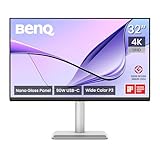
The BenQ MA320UP is the newest 32-inch Mac-focused entry in this roundup, and it exists for a specific kind of user: someone with a deep desk who wants one large canvas instead of two smaller ones, and who would rather read a full-page document, a three-panel code editor, or a timeline without squinting. It keeps the Mac-facing feature set of the MA line — dual USB-C, 90W power delivery, Mac Color Match — and scales it up to 32 inches.
Key specs as listed
- 32-inch IPS panel, 3840 × 2160 (4K UHD)
- Dual USB-C connectivity
- 90W power delivery over USB-C
- Mac Color Match
- 60Hz refresh rate class
- Updated model within the BenQ MA series
The scaling arithmetic you should do before buying
A 32-inch 4K panel works out to roughly 138 pixels per inch. That is a meaningful drop from the 27-inch 4K figure of about 163 PPI, and it changes the macOS experience. In “looks like 1920 × 1080” mode you get an exact 2× interface, but the elements are physically large — comfortable for some, cartoonish for others. In “looks like 2560 × 1440” mode, macOS renders at 5120 × 2880 and downsamples to 3840 × 2160, producing an effective UI scale that matches a 32-inch QHD monitor: familiar, roomy, and slightly less sharp than the same mode on a 27-inch panel because the pixels are physically bigger.
The practical consequence is that a 32-inch 4K display rewards distance. Sit 70–80 cm away and the text looks excellent. Sit 50 cm away and you will notice the softness compared with a 27-inch 4K. This is the single most common source of buyer’s remorse in the 32-inch 4K category, and it has nothing to do with the monitor’s quality — it is geometry.
Why it still earns a place
What you gain is genuine workspace. A 32-inch 4K screen comfortably holds two full-width windows side by side with room for a sidebar, which removes the constant window-juggling that a 27-inch panel forces at high scaling. For spreadsheet work, video timelines, CAD, and multi-document writing, that area is worth more than a marginal density advantage. The 90W USB-C delivery and dual-port arrangement mean the same one-cable desk setup as the smaller MA models, and Mac Color Match keeps colour consistent with the MacBook display for everyday editing and review.
Pros
- 32 inches of 4K workspace replaces a two-monitor setup for many users
- Same Mac-focused feature set as the smaller MA models: dual USB-C, 90W, Mac Color Match
- Newest revision in the 32-inch MA line
- Comfortable for long documents and wide timelines
Cons
- About 138 PPI — noticeably less crisp than a 27-inch 4K at close viewing distance
- Requires a deeper desk; at 60 cm the density advantage of 4K partly disappears
- 60Hz panel with ordinary IPS contrast
- Mid-range pricing for what is still a 4K IPS panel, not an OLED or mini-LED
How it compares
Its closest alternative is the BenQ MA320U, the earlier 32-inch model with the same headline specification. As with the 27-inch pair, the difference is revision rather than category — compare brightness, gamut percentages and hub details on the current listings and pick the better-documented one. Against the 27-inch MA270UP, the trade is explicit: you give up roughly 25 pixels per inch of density and gain about 36% more screen area. If you sit back and work across multiple windows, take the area. If you lean in and read text all day, take the density.
5. ASUS ProArt PA279CRV 27″ 4K – Best for colour-critical work on a budget

The ASUS ProArt PA279CRV is the outlier in this list: a monitor that is priced in the budget tier but specified like a professional colour instrument. It is aimed at photographers, illustrators, print designers and video editors who need coverage of wide colour spaces rather than merely accurate-looking sRGB, and who would rather have verified colour than 120Hz. For that audience, it is arguably the most capable screen here per unit of spend.
Key specs as listed
- 27-inch IPS panel, 3840 × 2160 (4K UHD)
- Wide-gamut coverage in the 99% DCI-P3 and 99% Adobe RGB class, per ProArt documentation
- Delta E < 2 factory accuracy claim, with Calman-verified status in the ProArt line
- USB-C connectivity with high-wattage power delivery (check the exact figure for the current revision)
- HDR400-class certification
- Built-in USB hub and an ergonomic stand in the ProArt design language
Why Adobe RGB coverage is the point
macOS works in Display P3, so P3 coverage is the baseline for a Mac monitor to look “right”. Adobe RGB is the additional space that matters if your work ends up in print, because the CMYK conversion pipeline depends on colours that sit outside P3 and well outside sRGB. A monitor that covers both means you can soft-proof a print layout and trust what you see, rather than discovering that a saturated cyan or green has shifted after the file leaves your machine.
Calman verification is the second differentiator. It signals that the panel was measured against a reference standard during production rather than simply being given a factory preset, and it is the kind of claim usually found on displays costing substantially more. Combined with a Delta E under 2, it makes this the pick for anyone whose deliverable depends on colour being defensible.
What it gives up
Refresh rate, mainly. This is a 60Hz panel, so it will not flatter fast motion or make scrolling feel like a gaming display. Contrast is standard IPS, so HDR content will look brighter and punchier than SDR but nowhere near OLED. And the USB-C power delivery, while generous for the tier, should be verified against your specific MacBook configuration — if you run a 16-inch MacBook Pro at sustained load, check the wattage before assuming the monitor alone will keep up.
Where it clearly wins is the combination of 4K resolution at 27 inches (about 163 PPI, the Mac sweet spot), wide-gamut accuracy, and budget-tier pricing. Nothing else in this roundup offers that particular trio.
Pros
- Wide-gamut coverage in the DCI-P3 and Adobe RGB class — rare at this price tier
- Delta E < 2 with Calman-verified class assurance
- 27-inch 4K at roughly 163 PPI is the most Mac-friendly density below 5K
- Ergonomic stand and built-in hub suit a permanent desk setup
- Budget-tier pricing for professional colour specifications
Cons
- 60Hz only, so no benefit for motion-heavy work
- IPS contrast limits HDR impact
- No Mac-specific colour-matching feature — you rely on the panel’s own accuracy
- Wide-gamut coverage can make untagged sRGB content look oversaturated until the profile is set correctly
How it compares
Against the BenQ MA270U, the PA279CRV wins decisively on colour space coverage and on professional verification, and loses on Mac-specific integration — there is no equivalent of Mac Color Match, so consistency between the MacBook panel and the monitor depends on how you profile the display. Against the premium ASUS ProArt PA279CDV QD-OLED, it gives up OLED contrast, 120Hz and HDR10 punch, but keeps the wide-gamut accuracy at a fraction of the tier. If your output is print or a colour-managed stills workflow, the PA279CRV is the smarter spend. If your output is HDR video or motion graphics, the OLED is the one to stretch for.
6. BenQ MA320U 32″ 4K – Best for a big-screen MacBook docking station

The BenQ MA320U is the 32-inch workhorse of this list: a 4K IPS panel with the full Mac-facing feature set — dual USB-C, 90W power delivery and Mac Color Match — intended to turn a MacBook into a desktop with one cable and one large screen. It suits the user who wants a single display that does everything: spreadsheets in the morning, photo review in the afternoon, a video call window parked in the corner all day.
Key specs as listed
- 32-inch IPS panel, 3840 × 2160 (4K UHD)
- Dual USB-C connectivity
- 90W power delivery over USB-C
- Mac Color Match
- 60Hz refresh rate class
- Wide-gamut P3-family coverage typical of the MA series
The docking-station argument
What separates a good 32-inch Mac monitor from a merely large one is how completely it replaces the laptop’s ports. With 90W USB-C delivery, the MA320U charges a 14-inch MacBook Pro at full adapter rate and a MacBook Air with headroom, while carrying 4K video on the same cable. Dual USB-C means the second port can serve a peripheral, an external SSD, or a second device without forcing you to unplug the laptop. For a Mac mini or Mac Studio owner, the same ports carry video and connect storage, which keeps the desk to a single cable run.
Mac Color Match is the feature that makes it a Mac monitor rather than a generic 32-inch 4K. It aligns the external panel’s colour response with the MacBook’s display so that moving a window between screens does not produce a visible shift in white point or saturation. For anyone who edits on the laptop and reviews on the monitor — or vice versa — that consistency is worth more than a small gamut advantage.
Living with 138 PPI
The 32-inch 4K density figure of roughly 138 PPI is the main thing to accept. At a comfortable 70–80 cm viewing distance, macOS text looks clean and the extra screen area is genuinely transformative. At 50 cm, you will notice that a 27-inch 4K panel of the same resolution is sharper. This is not a defect — it is simply what a fixed 3840 × 2160 grid looks like when spread over more glass. If you have a shallow desk or work with your face close to the screen, a 27-inch model is the better fit.
Pros
- Large 32-inch 4K canvas that replaces a two-monitor arrangement for many workflows
- 90W power delivery covers a 14-inch MacBook Pro at full adapter speed
- Dual USB-C makes it a genuine single-cable dock
- Mac Color Match keeps laptop and monitor colour aligned
- Mid-range pricing for a large Mac-focused panel
Cons
- Roughly 138 PPI — less crisp than 27-inch 4K at close range
- Needs desk depth to feel comfortable
- 60Hz and ordinary IPS contrast limit its appeal for HDR or motion work
- 16-inch MacBook Pro users should keep their own charger for heavy workloads
How it compares
The nearest alternative is the newer BenQ MA320UP, which carries the same headline specification and differs mainly by revision. Compare the two listings on brightness, gamut percentages and hub configuration, and take whichever is currently the better documented or better priced. Against the 27-inch MA270U, the choice is area versus density — 32 inches at about 138 PPI or 27 inches at about 163 PPI. And against the premium ASUS ProArt OLED, the MA320U offers far more screen area for less money, while the OLED offers far better contrast, colour volume and motion in a smaller frame.
7. ASUS ProArt Display 27″ 4K OLED (PA279CDV) – Best for HDR and motion work

The ASUS ProArt Display PA279CDV is the only premium-tier monitor in this roundup and the only one with a QD-OLED panel. That single change rewrites the rules: contrast becomes effectively infinite per pixel, black is genuinely black, HDR content stops looking like a brightened SDR image, and 120Hz transforms how smooth scrolling and motion feel on a Mac. It is the pick for video editors, colourists, motion designers and anyone whose work is judged on how it looks in motion or in the dark.
Key specs as listed
- 27-inch QD-OLED panel, 3840 × 2160 (4K UHD)
- 120Hz refresh rate
- HDR10 support
- 99% DCI-P3 coverage
- Professional-range Delta E accuracy
- USB-C connectivity
What QD-OLED actually
Ready to decide? Our #1 pick for 2026 is the INNOCN 27" 4K USB-C Monitor.
Live price & availability on Amazon.
Explore Our Guides & Free Tools
Ready to decide? Our #1 pick for 2026 is the INNOCN 27" 4K USB-C Monitor.
Live price & availability on Amazon.





Write Your Review
No reviews yet. Be the first to share your experience!