
Navigating the tablet market outside of Apple’s ecosystem requires a distinct shift in how you evaluate hardware and software. While iPads dominate general consumer awareness, non-Apple tablets have evolved significantly, offering specialized features, open file systems, and aggressive pricing structures. However, because Android and Windows tablets vary wildly in build quality and software optimization, picking the right device isn’t just about matching a spec sheet line-by-line against an iPad Pro or Air.
- 1. Operating System Priorities: Android Versus Windows
- 2. Processor Performance and Thermal Limits
- 3. Display Quality and Aspect Ratios
- 4. Stylus Responsiveness and Palm Rejection
- 5. Keyboard Integration and Desktop Environments
- 6. Ports, Expandability, and File Management
- 7. Knowing When to Pay More for Flagship Hardware
- Related Guides
- FAQ
- Related Guides
To find a device that genuinely serves your workflow in 2026, you must look past marketing buzzwords and evaluate how a slate handles real-world multitasking, pen input, and accessory integration. Making the wrong choice often leads to frustrating app compatibility issues, poor battery life under load, or sluggish performance within a year of purchase. This guide breaks down the critical factors you need to consider so you can invest in a portable device that matches your actual daily demands rather than theoretical maximums.
As an Amazon Associate we earn from qualifying purchases at no extra cost to you.

1. Operating System Priorities: Android Versus Windows
The single most important decision when shopping for an iPad alternative is choosing between Android and Windows. Android tablets excel at media consumption, casual browsing, and reading, offering a massive library of touch-first applications and seamless integration with Google services. On the other hand, Windows tablets function essentially as full desktop computers in a slate form factor. If you need to run legacy desktop software, specialized database management tools, or local executable files, a Windows machine is mandatory. However, Windows touch interfaces can sometimes feel clumsy compared to the fluid, touch-optimized nature of mobile operating systems.
2. Processor Performance and Thermal Limits
Do not judge a tablet’s performance solely by its core count or gigahertz ratings. Modern tablet processors must operate inside thin, fanless chassis, meaning thermal management dictates how long a device can sustain high performance. When editing 4K video or playing demanding 3D games, a poorly cooled processor will rapidly throttle its speed, causing stuttering and frame drops. Look for chips designed specifically for efficiency and sustained performance workloads. Pay attention to independent benchmark reviews rather than manufacturer claims to see how a device handles heat over a thirty-minute sustained workload.
3. Display Quality and Aspect Ratios
The physical dimensions and panel technology of your screen define your viewing experience. Tablets generally feature either a 4:3 aspect ratio (closer to a traditional book or the iPad format) or a 16:10 / 16:9 widescreen ratio. Widescreen panels are fantastic for watching movies and side-by-side app multitasking, but they can feel cramped when used in portrait mode. Furthermore, evaluate the panel technology itself. OLED screens offer infinite contrast and deep blacks, making them ideal for creative work and media viewing, while high-refresh-rate LCDs provide exceptional motion clarity and scrolling smoothness for a lower price point.
4. Stylus Responsiveness and Palm Rejection
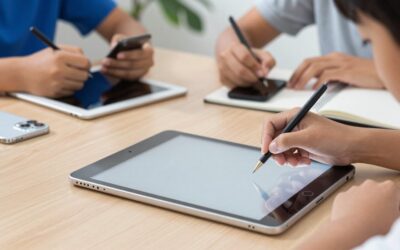
If you plan on taking handwritten notes, signing documents, or digital painting, the active stylus ecosystem is a make-or-break feature. Unlike basic capacitive styluses, modern active pens use built-in digitizers to communicate directly with the tablet display, offering pressure sensitivity and tilt detection. However, the quality of palm rejection software varies dramatically between manufacturers. A great stylus paired with poor palm rejection will result in erratic stray marks every time your hand brushes the screen. Always test or research the specific latency, actuation force, and software palm-rejection reliability of the pen bundled with or sold for your chosen tablet.
5. Keyboard Integration and Desktop Environments
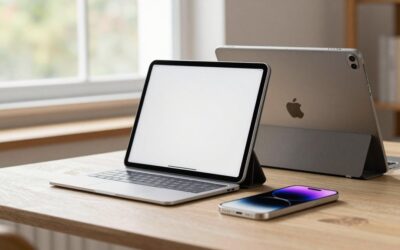
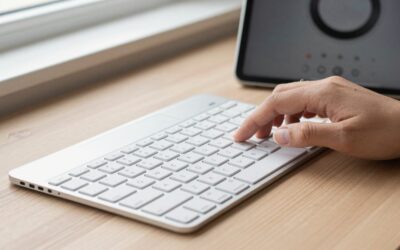
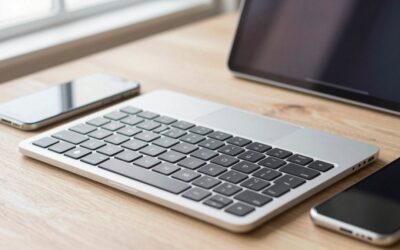
Transforming a tablet into a laptop replacement requires robust hardware keyboards and software interface adaptations. Some manufacturers offer desktop windowing modes that allow you to resize applications freely, use floating windows, and manage files through a traditional taskbar. This is crucial if you plan to write long-form documents or manage spreadsheets. When inspecting keyboard accessories, check for key travel, trackpad responsiveness, and whether the connection relies on secure physical pins rather than finicky Bluetooth pairing, which can introduce latency and dropouts during heavy typing sessions.
6. Ports, Expandability, and File Management
One of the primary frustrations of traditional tablet ownership is restricted file management and limited physical connectivity. When choosing an alternative, look for devices equipped with fully functional USB-C ports that support external display output, fast charging, and peripheral hub connection. Many Android and Windows alternatives also include microSD card slots, allowing you to expand local storage cheaply without relying on cloud subscriptions. Ensure the operating system allows you to manage a local directory structure freely, letting you drop files directly from cameras or external drives without routing through restrictive import applications.
7. Knowing When to Pay More for Flagship Hardware
It is easy to fall into the trap of buying a budget tablet for casual use, only to find it lagging during routine tasks within a few months. Mid-range and flagship tablets command higher prices for specific, tangible reasons: better display lamination, superior build materials, longer software support lifecycles, and more robust internal components. If you intend to keep your device for more than two years, investing in a slightly higher-tier model usually pays off through sustained performance, better battery health management, and a more pleasant daily user experience.
Related Guides
If you are actively comparing specific models on the market right now, you can explore our best iPad alternatives roundup to see how top-tier Android and Windows slates stack up against Apple’s lineup in real-world testing.
FAQ
Are non-Apple tablets easier to connect to non-Windows computers?
Android tablets transfer files easily to both Windows and Mac computers using standard USB-C cable connections and file transfer protocols. Windows tablets function just like any other PC, making network sharing and direct data transfers completely seamless.
Do third-party styluses work as well as the Apple Pencil?
High-end third-party styluses from major manufacturers offer exceptional latency and pressure sensitivity that rival Apple’s hardware. However, universal cheap third-party pens often lack palm rejection and pressure sensitivity entirely, so stick to brand-certified options.
How many years of software updates can I expect from Android tablets?
Software support varies wildly depending on the manufacturer and the price tier of the device. Premium flagship tablets often provide up to four or five years of security and operating system updates, whereas budget models may only receive one or two years of support.
Is it worth buying a tablet with cellular connectivity built-in?
Cellular-enabled tablets are ideal if you frequently work on the commute and dislike tethering to your smartphone’s hotspot. If you primarily use your tablet at home, in the office, or in Wi-Fi-enabled coffee shops, saving money on the Wi-Fi-only model is usually the smarter financial choice.


Write Your Review
No reviews yet. Be the first to share your experience!