
Building an efficient digital workspace on an iPad requires more than just grabbing the latest tablet off the shelf. In 2026, the ecosystem of stylus-driven productivity has evolved dramatically, blending advanced software capabilities with specialized hardware enhancements. Whether you are sketching complex architectural blueprints, annotating dense academic research, or hand-writing daily journals, the way your Apple Pencil interacts with both your screen and your software dictates your overall efficiency.
- Understanding Compatibility Across iPad Generations
- Matching Nibs and Tips to Your Creative Workflow
- Selecting Protective Grips for Ergonomic Relief
- Screen Protectors: Paper-Feel Versus Tempered Glass
- Charging Docks and Storage Solutions for Daily Carry
- Essential Software Integration: Choosing Companion Apps
- Balancing Budget Versus Longevity for Accessory Investments
- Related Guides
- FAQ
- Related Guides
Choosing the right combination of accessories and applications can feel overwhelming given the sheer volume of options available on the market today. Many buyers make the mistake of purchasing trendy add-ons without considering how they impact precision, latency, or hand fatigue during long creative sessions. This guide breaks down the core decision-making criteria, helping you focus on the specifications and features that genuinely improve your daily workflow.
As an Amazon Associate we earn from qualifying purchases at no extra cost to you.

Understanding Compatibility Across iPad Generations
The single most critical step in curating your toolkit is verifying absolute hardware compatibility. Apple Pencils are not universally interchangeable; the original Lightning-charging model, the second-generation magnetic charging version, and the newer iterations with squeeze gestures or USB-C connectivity each require specific iPad pairings. Before investing in charging sleeves, replacement caps, or custom carrying cases, confirm that your chosen accessories do not block magnetic charging strips or interfere with pairing sensors. Ensuring physical and electronic harmony prevents costly mistakes and frustrating returns.
Matching Nibs and Tips to Your Creative Workflow
The standard metal-threaded plastic tips that ship with the Apple Pencil are designed for general use, but they rarely satisfy specialized creators. If you do heavy digital illustration, you might prefer a needle-point metal tip for finer lines and enhanced visibility, though these require careful handling to avoid screen scratching. Conversely, rubberized or silicone tips offer higher friction for a traditional pen-and-paper drag, making them ideal for avid note-takers who want to prevent slipping. Assess your primary tasks to determine whether you need high-glide precision or controlled resistance.
Selecting Protective Grips for Ergonomic Relief
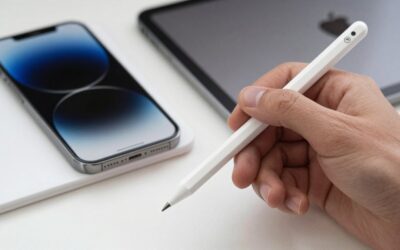
Extended writing and drawing sessions often expose the ergonomic limitations of a bare Apple Pencil. Because the default barrel is sleek, lightweight, and entirely smooth, it forces your fingers to pinch tightly to prevent rotation, leading to hand cramps. Silicone and foam grips add necessary diameter and a softer tactile surface, distributing pressure evenly across your fingers. When shopping for grips, look for options that are easy to slide on and off without requiring you to completely remove them every time you need to magnetically dock your stylus for charging.
Screen Protectors: Paper-Feel Versus Tempered Glass
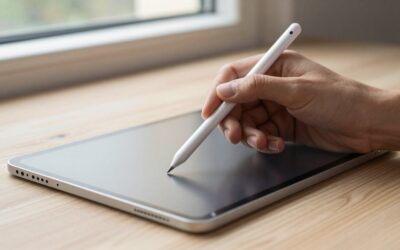
Your choice of screen protection fundamentally alters how the Apple Pencil feels against the glass. Tempered glass protectors maintain the crystal-clear retina display quality and touch responsiveness of your iPad, but they provide zero friction, creating a slippery writing surface that can feel unnatural for handwriting. Paper-feel matte protectors introduce a micro-textured surface that mimics real paper resistance, dramatically improving handwriting legibility and sketching control. However, keep in mind that textured films can slightly diffuse display sharpness and accelerate tip wear over time.
Charging Docks and Storage Solutions for Daily Carry
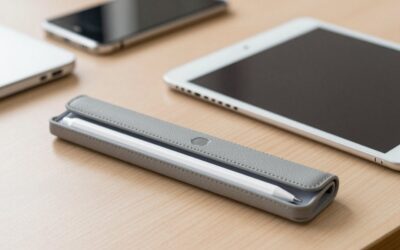
Keeping track of an Apple Pencil and its small accessories requires intentional organization, especially if you work on the go. Loose styluses easily slip to the bottom of backpacks or get lost between couch cushions. Desktop charging docks that feature a dedicated slot for your pencil keep your desk tidy and ensure your tools are powered up when inspiration strikes. For mobile setups, look for folio cases with integrated pencil loops or hardshell travel pouches designed to secure both the stylus and spare replacement tips safely.
Essential Software Integration: Choosing Companion Apps
Hardware accessories only perform as well as the software driving them. Integrating physical tools with the right applications bridges the gap between raw hardware and actual productivity. Vector-based drawing suites, infinite canvas brainstorming boards, and PDF annotation tools each handle palm rejection and pressure sensitivity differently. Look for applications that support palm rejection customization, pressure curve adjustments, and seamless cloud syncing so your handwritten notes and sketches are accessible across all your devices without friction.
Balancing Budget Versus Longevity for Accessory Investments
It is easy to overspend on aesthetic accessories that offer little functional improvement to your daily routine. When evaluating your budget, prioritize items that directly protect your investment—such as durable sleeves and reliable screen protectors—over purely cosmetic wraps or trendy stands. High-quality silicone, durable metals, and reputable software subscriptions generally offer better long-term value than cheap multi-packs that degrade quickly under daily use. Spend your money where physical wear and tear is highest.
Related Guides
To explore more expert recommendations, read our comprehensive Best Apple Pencil Apps Accessories in Essential Tools in 2026: Compared and Ranked guide.
FAQ
Do Apple Pencil tips wear out over time?
Yes, standard plastic tips wear down gradually through friction against the glass screen, especially if you use textured screen protectors. Heavy daily users typically need to replace their tips every six to twelve months to maintain optimal precision and prevent scratching hazards. Keeping a few spare tips in your accessory pouch ensures you are never caught unprepared.
Will a silicone grip interfere with magnetic charging?
Thick silicone grips generally prevent the Apple Pencil from charging properly when attached to the side of the iPad. If you prefer using a grip, you will either need to remove it before charging, choose an ultra-thin minimalist skin, or use a standalone desktop charging dock that accommodates bulkier profiles.
Can I use any screen protector with a paper-feel texture?
Most matte paper-feel protectors are fully compatible with the Apple Pencil, but they do increase friction, which accelerates the physical wear on your stylus tips. If you choose a heavily textured surface, consider investing in metal-reinforced tips or keeping a pack of standard replacement tips on hand to maintain smooth performance.
How do I know which Apple Pencil model I have?
The easiest way to identify your Apple Pencil model is by looking at its charging mechanism and pairing method. The first-generation model features a removable cap with a Lightning connector underneath, while the second-generation model features a flat edge that attaches magnetically to the side of compatible iPads for charging and pairing.
Write Your Review
No reviews yet. Be the first to share your experience!