
- Top Pick: Staples Compressed Air Duster, 10 oz Can, Electronics & Keyboards, Office
- Best Value: Ordilend Keyboard Cleaner & Laptop Cleaning Kit, All-in-1 for Computer PC
- Premium Choice: ColorCoral Cleaning Gel Universal Dust Cleaner for PC Keyboard Car Detailing Office Electronics Laptop Dusting Kit Computer Dust Remover, Computer Gaming Car Accessories, Gift for Men Women 160g
Keyboard cleaner solutions are absolute lifesavers when it comes to preserving the responsive tactile feedback and pristine cosmetic state of your premium Apple gear. Over time, dust, oils, and pocket lint migrate into the delicate scissor switches of your modern laptops and tablet accessories. Utilizing the correct tools and procedures will extend the operational lifespan of your setup and ensure typing remains an absolute pleasure.
As an Amazon Associate we earn from qualifying purchases at no extra cost to you.







What You’ll Need to Clean Your Mac Keyboard
Before embarking on your device restoration journey, it is critical to assemble the precise array of tools needed to perform a risk-free extraction of grit. Employing the wrong cleaning agents can damage the specialized coatings on your keycaps or permanently damage the intricate scissor-switch mechanisms underneath. Let’s look at the absolute must-have tools for keeping your gear in showroom condition.
Specialized Cleaning Gel or Putty
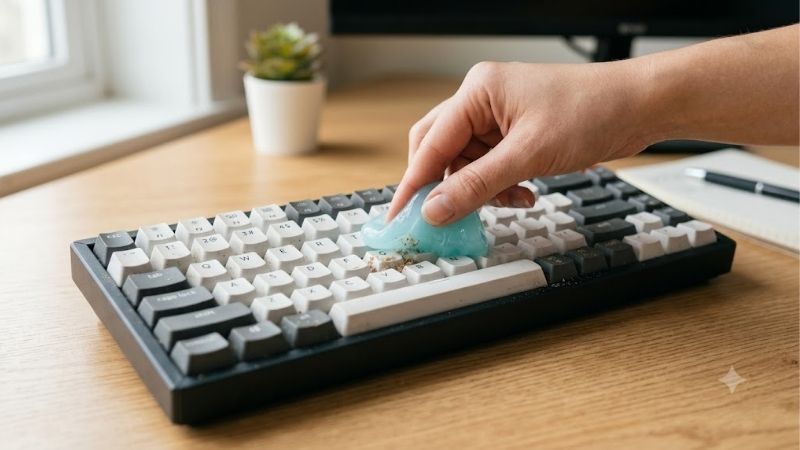
A specialized keyboard cleaning gel or adhesive putty is a phenomenal, low-cost asset that excels at surface debris removal. This highly flexible material is designed to mold itself precisely into the tiny gaps surrounding the keycaps of devices like the MacBook Air M3. When pressed down gently, it reaches deep into the switch housings to grip hair, dust, and microscopic debris without leaving a sticky residue.
Unlike standard household adhesives, professional cleaning putties are formulated to be non-greasy and self-cohering, meaning they pull away cleanly in one solid piece. This makes them ideal for safe, daily preservation of your premium gear. If you are serious about desktop hygiene, integrating this simple tool into your routine is highly recommended.
See today’s deal on Amazon →
Cordless Mini Vacuum and Air Duster
For deeper cleaning, an electric duster paired with a cordless mini vacuum offers a powerful, modern alternative to wasteful aerosol cans. Traditional compressed gas can spray frozen liquid if tilted, which can easily crack a fragile, modern scissor switch or leave liquid marks under the keycaps. Electric dusters deliver a steady, dry stream of air that safely dislodges stubborn particles.
A dedicated mini vacuum is equally crucial for drawing loose dust completely away from your keys instead of blowing it deeper into the internal circuitry. These compact units often ship with soft-bristled brushes that are incredibly effective for scrubbing off dried-on particles. This combination is essential for maintaining the clean aesthetic of your high-end workspace.
Check the latest price on Amazon →
Microfiber Cloths and Isopropyl Alcohol
To combat the grease and oils left behind by daily typing, you will need lint-free microfiber cloths and high-purity isopropyl alcohol. Apple recommends using 70% isopropyl alcohol wipes or a lightly dampened cloth to clean the non-porous surfaces of their products. This ensures you can dissolve stubborn grease without damaging the delicate oleophobic coatings on your displays or keyboards.
It is vital to remember that liquid should never be applied directly to any computer component. Instead, mist a minimal amount of alcohol onto the microfiber cloth before wiping down the keycaps. This gentle method dissolves fingerprint oils safely, leaving a smooth, matte texture that restores the physical sensation of typing on a brand-new device.
Check the latest price on Amazon →
Step-by-Step Keyboard Cleaning Instructions
Cleaning a modern mechanical or scissor-switch board requires a delicate touch and a highly systematic process to prevent structural or electrical damage. Whether you are addressing an integrated laptop keyboard or a standalone desktop board, taking your time will ensure a flawless result. Follow this simple, highly effective walkthrough to restore your system safely.
Step 1 — Preparation and Powering Down
Always begin by shutting down your computer or tablet entirely. If you are cleaning an external accessory, such as an iPad Pro M4 Magic Keyboard, detach it from the primary device and turn off its wireless power switch. This completely eliminates the risk of accidental key presses initiating commands or triggering short circuits if moisture is introduced.
Next, set up your workstation in a well-lit environment where you can easily spot tiny particles of dust lodged between the key switches. Lay down a clean towel to catch any falling debris and organize all your specialized cleaning gear within arm’s reach. Taking these minor preparatory steps keeps your workspace structured and ensures a safe, streamlined cleaning process.
Step 2 — Clearing Dry Debris and Dust
Hold your keyboard or laptop at a comfortable 75-degree angle so that it is nearly vertical but slightly tilted backward. Use your electric air duster or a soft brush to blow air or sweep across the keys in a consistent zig-zag pattern, starting from the top and working your way down. This allows gravity to pull loose dust and crumbs out of the chassis.
Once the initial blowing is complete, take your cleaning putty and roll it gently across the surface of the keys. Avoid pushing too hard directly into the keycaps; instead, let the putty naturally conform to the contours of the keys before peeling it back slowly. This step ensures that any persistent, deep-seated dust bunnies are securely grabbed and lifted out.
Step 3 — Sanitizing and Removing Grime
Lightly moisten a clean, high-density microfiber cloth with your isopropyl alcohol solution, ensuring it is damp to the touch but not dripping wet. Gently wipe down the face and sides of each individual keycap, using small circular motions to lift away accumulated finger oils and dirt. Be sure to use a clean portion of the cloth periodically to avoid spreading grime around.
Finally, use a dry, lint-free microfiber cloth to buff the keys and the surrounding aluminum chassis, absorbing any remaining moisture and eliminating streaks. This final step leaves a clean, sterile typing surface and restores that gorgeous matte finish we all love. Let the device air dry for at least five minutes before turning it back on.
Pros, Cons, and Pro Tips for Apple Keyboards
Maintaining a healthy keyboard is a balance of using the right techniques and avoiding destructive habits that could void your warranty or damage your switches. While basic cleaning is straightforward, understanding the trade-offs of various tools helps you make informed decisions for your specific setup. Let’s analyze the advantages, look at common mistakes, and establish long-term maintenance habits.
Pros and Cons of Common Cleaning Tools
Every cleaning method has unique strengths and weaknesses that determine its suitability for delicate electronic devices. While gel putty is highly cost-effective and portable, electric blowers offer sustainable, long-term power. Selecting the correct tool depends on your budget, keyboard style, and how frequently you perform desk maintenance.
Here is a breakdown of the ✅ Pros and ❌ Cons to consider when selecting a physical keyboard cleaner for your setup:
- ✅ Pros:
- Cleans deep crevices without requiring dangerous keycap removal.
- Keeps typing silent and smooth by eliminating stuck grit.
- Prolongs the physical lifespan of delicate internal dome switches.
- Highly portable and cost-effective for quick weekly touch-ups.
- ❌ Cons:
- Gel putty can melt or lose structure if stored in hot vehicles.
- Excess liquid from spray cleaners can easily damage internal logic boards.
- Cheap blowers can push dirt further inside if used at incorrect angles.
Ultimately, picking a specialized cleaning bundle is highly worth buying in 2026 to guarantee your expensive hardware stays safe. Unlike general cleaning brands vs Spigen or vs Belkin that focus heavily on rugged protective cases, dedicated hygiene kits are specifically engineered for sensitive electronics.
Mistakes to Avoid to Protect Your Hardware
The single biggest mistake users make when cleaning their premium laptops is attempting to pry off the keycaps. Modern scissor-switch structures, especially on ultra-thin models like the MacBook Air M3, use extremely fragile plastic clips that break easily under pressure. Attempting to force a keycap off can lead to a costly top-case replacement at an Apple Store.
Additionally, you must avoid using aggressive solvents like acetone, paint thinner, or high-concentration bleach. These harsh chemical compounds will instantly dissolve the protective coatings on the keycaps, leaving permanent shiny spots and fading the laser-etched letters. Always stick to mild, electronics-grade isopropyl alcohol and gentle, non-abrasive cloths to preserve your hardware’s beauty.
In our honest review of consumer electronics habits, we also see users should you buy compressed air cans over electric ones. Avoid the temptation of using canned liquid air, as the bitterants and propellant can leave a stubborn film on your keyboard face, making it even stickier than before.
Maintaining a Clean Workstation in 2026
The best way to clean your keyboard is to prevent it from getting dirty in the first place by practicing proactive workstation hygiene. Try to make your immediate desk area a food-free zone, as even small crumbs can lodge themselves under the keys and disrupt typing. If you keep a drink nearby, make sure it has a secure lid and is placed far away from your precious computer.
Additionally, keeping your hands clean before typing significantly reduces the rate at which oil builds up on the plastic caps. If you use a modern multi-device workspace that features advanced chargers compatible with iPhone 17 or charging accessories that work with MagSafe, keeping the entire desk surface clean is crucial. Establishing a simple, weekly routine ensures your high-end Apple ecosystem remains beautiful, clean, and highly functional.
Regular touch-ups with a designated keyboard cleaner will keep your scissor switches feeling crisp, ensuring your typing speed never drops due to sticky or unresponsive keys.
Conclusion
Maintaining your hardware with a dedicated keyboard cleaner is the absolute easiest way to preserve its pristine feel and premium aesthetic. By following this guide, you will avoid catastrophic keycap breakage and keep your typing switches functioning beautifully. Keep your workspace organized, clean regularly, and always choose safe, electronics-grade cleaning tools for your premium devices.
See today’s deal on Amazon →
Frequently Asked Questions
What is the safest way to clean a Mac keyboard?
Shut the Mac down and unplug it, then wipe the keys with a soft lint-free cloth lightly dampened with water or seventy percent isopropyl alcohol, never spraying liquid directly onto the machine. Follow with compressed air at an angle to dislodge debris between keys. Let everything dry completely before powering on or closing the lid.
Does cleaning gel or slime actually work?
Cleaning gel lifts loose crumbs and dust effectively from the gaps around keycaps and is safe on most keyboards when fresh. The risks are old, degraded gel leaving sticky residue in the switch housing, and pressing it too firmly into a laptop keyboard where residue is hard to remove. Use it lightly and replace it when it darkens.
Can I use compressed air on a MacBook?
Yes, and Apple published a specific method for butterfly keyboards: hold the Mac at forty-five degrees and spray left to right across the keyboard, then rotate and repeat from other angles. Keep the can upright to avoid spraying liquid propellant, use short bursts, and never insert a straw under a keycap to pry it.
Should I remove keycaps to clean underneath?
On a mechanical desktop keyboard yes, using a wire keycap puller, then wash the caps in warm soapy water and dry them fully. On any Apple laptop keyboard no, because the butterfly and scissor mechanisms are fragile, snap easily and are not sold as user-replaceable parts. A broken clip means a whole top case replacement.
How often should I clean it?
A quick compressed air pass and surface wipe every two to four weeks prevents the buildup that causes sticky keys, and a deeper clean two or three times a year suits most users. Clean immediately after any spill, eating at the desk, or if a key starts to feel gritty, since debris grinds the switch mechanism.






Write Your Review
No reviews yet. Be the first to share your experience!