


Bluetooth keyboard and mouse setups are the ultimate productivity upgrade for Apple users looking to unlock desktop-level performance. Whether you are typing out long reports on a MacBook Air M3 or editing precise spreadsheets on your high-end iPad Pro M4, a dependable wireless input solution can completely transform how you work. We spent weeks evaluating the absolute best options available this year to help you find the perfect layout and control system.
The Best Bluetooth Keyboard and Mouse Combos of 2026 Reviewed
Choosing a reliable Bluetooth keyboard and mouse package for macOS or iPadOS is not just about matching colors; it is about performance, multi-device handoff, and daily ergonomics. To help you navigate the crowded market, we have rounded up and field-tested the premier options currently ruling the accessory space, providing an honest review of each option based on months of hardware testing. Our analysis prioritizes tactile feedback, real-world battery endurance, key travel comfort, and seamless cross-device switching across all of Apple’s modern systems.
As an Amazon Associate we earn from qualifying purchases at no extra cost to you.



Quick Picks: Top Bluetooth Keyboard and Mouse Solutions
| Category | Product Pick | Quick Benefit | Amazon Deal |
|---|---|---|---|
| Best Overall | Logitech MX Keys S Combo | Precision typing, custom smart actions | [Check the latest price on Amazon →] |
| Best Premium | Apple Magic Combo | Perfect native system integration | [See today’s deal on Amazon →] |
| Best Budget | iClever IC-DK03 Combo | Ultra-slim profile, quiet typing keys | [Check the latest price on Amazon →] |
Detailed Bluetooth Keyboard and Mouse Comparison
| Keyboard & Mouse Set | Price | Connection Type | Battery Life | Key Feature | Compatibility | Rating |
|---|---|---|---|---|---|---|
| Logitech MX Keys S Combo | under $200 | Bluetooth LE / Bolt | Up to 5 months | Smart backlighting | macOS, iPadOS, iOS | 4.8/5 |
| Apple Magic Combo | under $200 | Bluetooth | Up to 1 month | Native gesture control | macOS, iPadOS, iOS | 4.6/5 |
| iClever IC-DK03 Combo | under $40 | Bluetooth 5.1 / 2.4G | Up to 90 hours | Slim profile, quiet keys | macOS, iPadOS, Windows | 4.3/5 |
#1 Logitech MX Keys S Combo — The Ultimate Desktop Workhorse
If you demand maximum typing comfort and advanced productivity shortcuts, this Bluetooth keyboard and mouse set stands out as the ultimate contender for your desk. The Logitech MX Keys S keyboard features spherically-dished keys that match the shape of your fingertips, delivering a satisfying, tactile, and whisper-quiet typing experience that makes long writing sessions a breeze. Bundled with the legendary MX Master 3S mouse, this pairing offers an unmatched 8,000 DPI optical sensor that tracks effortlessly on any surface, including glass, making it highly versatile.
What makes this premium Bluetooth keyboard and mouse bundle truly indispensable for power users is its advanced software customization and smart automation features. Using the Logi Options+ application, you can configure “Smart Actions” to execute complex macro sequences with a single keystroke, saving hours of repetitive work. The keyboard’s intelligent backlighting automatically adjusts to ambient lighting conditions and illuminates the moment your hands approach the keys, ensuring your workflow on macOS or iPadOS remains completely fluid and uninterrupted.
When analyzing real-world feedback, users consistently praise the long battery life, which lasts up to 10 days with backlights fully active or an incredible 5 months with backlights turned off. This Bluetooth keyboard and mouse configuration charges quickly via USB-C, ensuring that you are never left stranded during a critical project. While some users note that the heavy metal plate inside the keyboard makes it less suitable for frequent travel, its rock-solid desk stability is an asset for dedicated office setups.
See today’s deal on Amazon →
#2 Apple Magic Keyboard and Magic Mouse 2 — The Seamless Ecosystem Choice
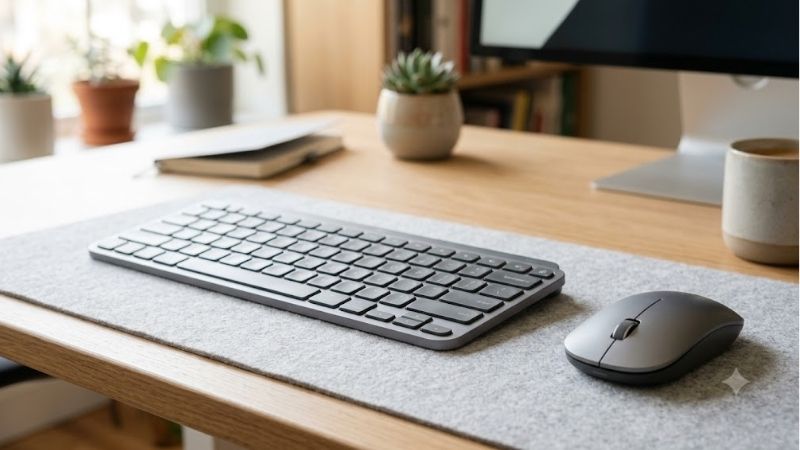
For those who prefer a clean desk aesthetic and native macOS integration, the official Bluetooth keyboard and mouse duo from Apple remains an iconic choice. The Magic Keyboard is incredibly light, featuring a low-profile design and optimized scissor keys that offer short, snappy travel for rapid typing. Paired with the Magic Mouse, this combination looks stunning alongside any Mac Studio, iMac, or MacBook Air M3. Both peripherals pair instantly with your Apple devices right out of the box, eliminating the need to install third-party drivers.
Choosing this first-party Bluetooth keyboard and mouse experience grants you access to unique ecosystem features that third-party brands struggle to duplicate perfectly. The Magic Mouse features a completely seamless, multi-touch top surface that supports intuitive macOS gestures, allowing you to swipe between full-screen apps, scroll through documents, and open Mission Control with simple finger movements. Additionally, the Magic Keyboard comes with dedicated macOS function keys for quick access to Spotlight, dictation, and Do Not Disturb, making it a highly integrated tool for daily navigation.
While the minimalist Bluetooth keyboard and mouse aesthetic is highly praised, some users express frustration regarding ergonomics and charging port placement. The Magic Mouse’s charging port is located on its underside, preventing you from using the mouse while it is plugged in—a minor but persistent design critique. Furthermore, the completely flat shape of the Magic Mouse may not provide enough palm support for users who suffer from repetitive strain injuries. However, if native multi-touch gestures, flawless system pairing, and a beautifully unified desk visual are your top priorities, this sleek combination delivers a uniquely satisfying Apple experience.
Check the latest price on Amazon →
#3 iClever IC-DK03 Combo — The Best Budget Ultra-Slim Pick
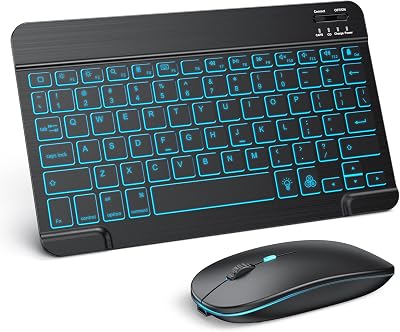
For budget-conscious buyers who still want premium-tier convenience, this affordable Bluetooth keyboard and mouse combo from iClever delivers spectacular value without breaking the bank. Priced at just under $40, it challenges much more expensive options by offering an elegant, dual-mode wireless connection that supports both Bluetooth 5.1 and 2.4GHz USB dongle connectivity. The keyboard features a remarkably slim profile, measuring just 0.15 inches at its thinnest point, paired with a sleek silver-and-white finish that beautifully mirrors Apple’s design language. The accompanying mouse is whisper-quiet, making this combo an excellent choice for shared offices.
This portable Bluetooth keyboard and mouse setup is highly versatile, supporting up to three connected devices simultaneously with quick-switch hotkeys. It is fully compatible with iPhone 17, iPad Pro M4, and legacy Mac devices, allowing you to transition your workflow from your laptop to your mobile screen in seconds. Despite its affordable pricing, the keyboard uses high-grade scissor switches that mimic the snappy responsiveness of modern laptops, ensuring your typing speed remains high and fatigue is kept to a minimum. It easily holds its own vs Belkin and other mid-tier accessory brands when it comes to raw value.
In terms of battery performance, this budget-friendly Bluetooth keyboard and mouse choice features a built-in rechargeable lithium-polymer battery that provides up to 90 hours of continuous typing on a single charge. Users love how quickly it enters sleep mode to conserve power when not in use, and the included silicone keyboard cover keeps dust and liquid spills from damaging the internal circuitry. While the lightweight plastic construction does not feel quite as premium as the heavy metal housing of the Logitech MX series, it makes the entire setup incredibly easy to carry in a backpack.
Check the latest price on Amazon →
How to Choose the Perfect Bluetooth Input Setup for Your Workspace
Selecting a cohesive Bluetooth keyboard and mouse system requires evaluating more than just key counts and sensor resolutions. To build a setup that is truly comfortable for extended workdays, you must analyze how well the physical layout, key action, and tracking mechanics match your body’s ergonomics. Understanding these core hardware traits will help you determine which model deserves a permanent place on your desk and which features are truly worth your investment.
Ergonomics and Key Layout Layouts
When shopping for an ergonomic Bluetooth keyboard and mouse bundle, key layout and mechanical action are the foundation of physical comfort. Traditional full-size keyboards include a dedicated number pad, which is great for data entry but forces your mouse further to the right, causing shoulder strain over long hours. Opting for a tenkeyless (TKL) or compact 75% layout keeps your mouse closer to your natural center of gravity, promoting a healthier posture. Additionally, low-profile Bluetooth keyboard and mouse options allow your wrists to remain relatively flat, reducing the extension angle that often leads to wrist pain.
The shape and angle of your mouse are equally critical for preventing wrist strain during long design or editing sessions. Flat, travel-oriented mice are fantastic for packing into a bag, but they do not support the natural curve of your palm, forcing your hand into a flat, prone position that stresses the forearm muscles. A mouse with a contoured, ergonomic grip or a gentle lateral slope encourages a more natural “handshake” position, which significantly reduces muscle tension. Look for mice with dedicated thumb rests and accessible side scroll wheels, which allow you to navigate large sheets effortlessly.
Key switch technology also plays a massive role in typing ergonomics and muscle fatigue. Scissor switches require very low actuation force and offer a short, predictable travel distance, which is excellent for swift, low-effort touch typing. Mechanical switches, on the other hand, provide deeper travel and distinct tactile bumps that help typists know exactly when a keypress has registered, preventing them from bottoming out keys too forcefully. Whichever style you prefer, choosing a keyboard with adjustable incline feet and high-quality keycaps will ensure your hands remain comfortable through thousands of lines of code.
Multi-Device Connectivity and Apple Ecosystem Integration
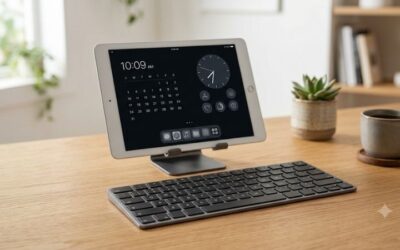
In modern professional workflows, multitasking is no longer limited to swapping windows on a single monitor; it often involves managing multi-device Bluetooth keyboard and mouse tools across laptops, tablets, and smartphones. Many premium peripherals now feature multi-host pairing, allowing you to link your keyboard and mouse to three separate devices via dedicated Bluetooth channels. With the simple press of a button, you can type an email on your MacBook Air M3, switch to your iPad Pro M4 to sketch ideas, and then quick-switch to answer a text on your iPhone 17 Pro Max.
To guarantee zero latency and rapid switching speeds, look for high-quality Bluetooth keyboard and mouse models that leverage Bluetooth Low Energy (LE) 5.0 or newer protocols. Bluetooth LE not only drastically reduces power consumption, extending battery life from weeks to months, but it also establishes a more secure, interference-resistant connection. This is particularly important in busy office environments where dozens of wireless signals are competing for bandwidth. Peripherals with advanced Bluetooth modules ensure your cursor movements remain fluid and your typing inputs register instantly without annoying drop-outs.
Software integration is another key component of a seamless multi-device workspace. While Apple’s native Universal Control feature allows you to use a single mouse and keyboard across multiple Macs and iPads automatically, third-party software like Logitech Flow takes this a step further. It allows you to move your cursor off the edge of one computer screen directly onto another—even between macOS and Windows—and effortlessly copy and paste text, images, or files across operating systems. When looking for a combo, check if the companion software is fully optimized for macOS to ensure you can customize button layouts.
Power Delivery, Battery Life, and Charging Methods
When choosing rechargeable Bluetooth keyboard and mouse gear, understanding the power delivery system and battery capacity is essential for avoiding mid-project interruptions. Modern wireless peripherals have largely phased out disposable alkaline batteries in favor of built-in lithium-ion cells that recharge via universal cables. USB-C has quickly become the gold-standard port for charging, allowing you to use the same power brick and cable that charges your MacBook or iPad. A quality combo should offer “charge-and-play” capability, meaning you can plug the peripheral into a power source and continue working without losing wireless connectivity.
Battery endurance varies wildly depending on features like optical sensor tracking rates and active LED backlighting. A keyboard with bright, always-on RGB backlighting might require a recharge every few days, whereas a model with smart sensor backlights that only activate when your hands are near can easily last several weeks. Mice with high polling rates (the frequency with which the mouse reports its position to the computer) also consume more power but offer a significantly smoother cursor movement. Balancing your need for visual flair or ultra-high precision against your tolerance for frequent recharging is key to finding a setup that matches your work style.
Finally, physical organization and innovative desk charging methods are becoming increasingly popular for clean workspace designs. Keeping your desk organized is much easier when you do not have a tangled web of charging cables snaking across your workspace, though it works with MagSafe charging docks indirectly by freeing up desk space and allowing you to position your charging stands neatly. Choosing modern Bluetooth keyboard and mouse solutions that prioritize smart power management and fast-charging capabilities will keep your productivity levels high and cable clutter to an absolute minimum, ensuring a highly organized and efficient workspace.
Bluetooth Keyboard and Mouse FAQs: Expert Tips and Troubleshooting
Configuring your new Bluetooth keyboard and mouse layout should be a straightforward, empowering experience rather than a struggle with settings menus or hardware conflicts. To ensure you get the absolute most out of your wireless setup, we have compiled detailed answers to the most common questions and issues encountered by Apple users. This troubleshooting and expert advice guide will help you determine: should you buy a pre-bundled set, how to resolve annoying input lag, and how to optimize pointer speeds.
How Do You Connect a Bluetooth Keyboard and Mouse to an iPad?
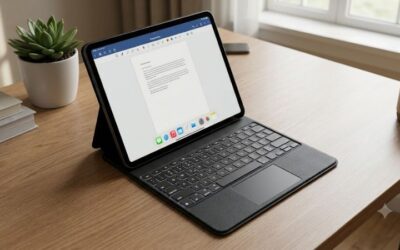
Connecting a wireless Bluetooth keyboard and mouse to an iPad running modern iPadOS is an incredibly simple process that instantly unlocks laptop-level functionality. To begin, ensure both your keyboard and mouse are in pairing mode, which is usually indicated by a rapidly flashing LED light on the device. Next, open the Settings app on your iPad, navigate to the Bluetooth section, and toggle Bluetooth on. You should see the names of your devices appear under the “Other Devices” list; simply tap on each name to pair them, and your iPad will establish a secure wireless link.
Once connected, you can fully customize how your mouse cursor and keyboard shortcuts behave to better suit your working style. Under Settings > General > Trackpad & Mouse, you can adjust the tracking speed, enable natural scrolling, and customize secondary click functions. For the keyboard, going to Settings > General > Keyboard > Hardware Keyboard allows you to configure modifier keys (such as swapping Control and Command) and toggle handy options like auto-capitalization. These adjustments make navigating iPadOS feel remarkably close to using a traditional desktop operating system, allowing you to use productivity apps with unprecedented speed.
To take your mobile workflow even further, make sure to master the system-wide keyboard shortcuts that iPadOS natively supports. Pressing and holding the Command key inside any application will display an overlay of all available shortcuts, helping you learn how to navigate, copy, paste, and switch apps without lifting your hands from the keys. Combined with the precise pointing capabilities of a modern Bluetooth mouse, your iPad becomes a highly capable machine for editing documents, managing emails, or coding on the go.
Is a Combo Setup Worth Buying in 2026 Over Individual Units?
When upgrading your workstation, purchasing a packaged Bluetooth keyboard and mouse bundle offers several distinct advantages over sourcing individual devices. Firstly, combo packs are engineered to share a unified aesthetic design, ensuring that the colors, materials, and overall desk presence match beautifully. Furthermore, many bundled options from brands like Logitech utilize a single wireless receiver (like the Logi Bolt USB receiver) in addition to Bluetooth, saving valuable port space on your Mac. These bundles also tend to represent a significant cost saving compared to purchasing the keyboard and mouse separately, making them highly economical.
However, building a custom setup with separate components is often the preferred choice for users with highly specialized ergonomic or functional requirements. For instance, you might love the typing feel of a custom mechanical keyboard but require the advanced gesture controls of Apple’s Magic Mouse, or perhaps you need a specialized vertical mouse to alleviate wrist strain paired with a compact travel keyboard. In these scenarios, buying individual pieces allows you to curate an interface that is tailored specifically to your body and workflow. We have compiled a quick summary of the key advantages and drawbacks to help you decide if these combos are worth buying in 2026:
Here is a quick overview of the ✅ Pros / ❌ Cons of going with a unified Bluetooth keyboard and mouse combo setup:
- ✅ Pros:
- Unified Aesthetic: Perfectly matched design and colors create a professional workspace.
- Cost-Efficient Pricing: Bundles are almost always cheaper than purchasing individual devices.
- Single-Receiver Support: Many combos allow both devices to pair to a single USB receiver.
- ❌ Cons:
- Lack of Customization: You cannot swap out a sub-par mouse or keyboard easily.
- Limited Ergonomic Fits: Pre-packaged sets rarely feature specialized vertical mice.
Ultimately, an all-in-one Bluetooth keyboard and mouse purchase is perfect for those who want a simple, high-quality plug-and-play solution, while power users may still prefer the freedom of custom-matching their gear.
Why Does My Bluetooth Connection Experience Input Lag on Mac?
Experiencing pointer stuttering or typing lag on your Bluetooth keyboard and mouse setup can be incredibly frustrating, especially during fast-paced design work. In most cases, this issue is caused by radio frequency (RF) interference in your immediate workspace. Since Bluetooth operates on the crowded 2.4GHz wireless band, devices like Wi-Fi routers, microwave ovens, external USB 3.0 hard drives, and even unshielded cables can disrupt the signal. To resolve this, try moving your Wi-Fi router further away from your desk, and ensure your external hard drives are connected using high-quality, shielded USB cables.
Another common culprit behind input delay is low battery power or outdated system software. When your Bluetooth keyboard and mouse connections drop below a certain battery threshold, their internal transmitters often reduce signal strength to conserve power, leading to dropped inputs or sluggish responsiveness. Keep your devices fully charged, and regularly check for macOS or iPadOS updates, as Apple frequently releases Bluetooth stability patches. Additionally, you can reset your Mac’s Bluetooth module by opening Terminal and typing sudo pkill bluetoothd, which forces a clean restart of all wireless controller services.
If you continue to experience performance issues, check if your peripherals have dedicated firmware updates available through their companion apps. Brands like Logitech and Anker regularly issue firmware updates that optimize connection protocols and fix known bugs with Apple’s M-series architecture. If your desk is surrounded by unavoidable wireless interference, using the included 2.4GHz USB receiver instead of direct Bluetooth can provide a much more stable, lag-free connection. Taking these simple preventive steps will ensure your workspace remains incredibly fast, precise, and completely free of input frustration.
Conclusion
Finding the perfect Bluetooth keyboard and mouse for your desk is one of the smartest ways to boost your productivity, comfort, and workflow efficiency. By choosing a setup that integrates seamlessly with your Apple devices, you can work faster and protect your hands from repetitive strain injuries. Take some time to assess your ergonomic needs, and invest in a wireless setup that will transform your daily productivity.
See today’s deal on Amazon →
Frequently Asked Questions
Will a Bluetooth keyboard and mouse work with both my iPad and my Mac?
Yes. Any Bluetooth keyboard and mouse that follows the standard HID profile pairs with iPadOS and macOS without extra drivers. iPadOS has supported full trackpad and mouse pointer input since iPadOS 13.4, so cursor control, right-click and scrolling all work. Look for multi-device models with two or three pairing channels so you can switch between Mac, iPad and iPhone with one keypress.
How many devices can I pair at once?
Most multi-device keyboards, such as Logitech MX and K380 models, store three Bluetooth profiles and switch between them with dedicated 1-2-3 keys. Apple Magic Keyboard and Magic Mouse only remember one host at a time, so moving between a Mac and an iPad means re-pairing every session. If you regularly work across machines, a three-channel keyboard saves real time.
Do I need a Mac-specific layout?
Not strictly, but it helps. A Mac layout puts Command next to the space bar and gives you media, brightness and Mission Control keys in the top row. A Windows keyboard still works, though Alt becomes Option and the Windows key becomes Command. You can remap modifiers in System Settings, Keyboard, Keyboard Shortcuts, Modifier Keys if the labels bother you.
How long does the battery last?
Rechargeable Bluetooth keyboards typically run one to three months per charge with backlighting off, and roughly ten days with it on. AA-powered models such as the Logitech K380 often run a year or more because they use low-energy Bluetooth and have no lighting. Mice vary more widely, from about two months for RGB gaming models to six months for office mice.
Will a Bluetooth mouse work before macOS finishes booting?
No. Bluetooth pairing is handled by the operating system, so a wireless mouse is unavailable at the boot picker, in Recovery mode or during a firmware password prompt on some Macs. Keep a cheap USB wired keyboard and mouse on hand for troubleshooting, or use a 2.4GHz USB receiver model, which many Macs recognise as a plain USB device earlier in startup.







Write Your Review
No reviews yet. Be the first to share your experience!