
- Top Pick: M3 MACBOOK AIR USER MANUAL: The Beginners and Seniors Guide to Master the 13-Inch & 15-Inch MacBook Air with M3 Chip for macOS Sonoma
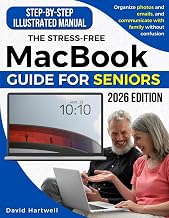
- Best Value: MacBook Made Simple for Seniors & Beginners: An All-in-One, Step-by-Step Visual Guide – Learn, Customize & Enjoy Your Mac with Large Pictures, Clear Tutorials & Real-Life Examples Without Stress
- Premium Choice: MacBook For Dummies (For Dummies: Learning Made Easy)
The MacBook Air M3 is a near-perfect machine for online learning: silent, fanless, light enough to carry all day, and powerful enough to juggle video lectures, note-taking, and research without breaking a sweat. If you have just unboxed one to tackle a certificate program or a full degree, a little setup goes a long way toward a smooth semester.
- Watch: Beginner’s Guide to Using Your MacBook Air M3 for Online Courses — Video Review
- Set Up Your Learning Workspace
- Master the Built-in Study Tools
- Optimize Video Calls and Lectures
- Stay Focused and Manage Time
- Keep Learning With Reference Guides
- Tips
- Frequently Asked Questions
- Conclusion
- Related Articles
- Related Guides
This beginner’s guide walks through configuring your MacBook Air M3 for coursework, from organizing your digital workspace to mastering the built-in tools that keep you focused. No prior Mac experience is required; by the end you will have a study-ready laptop and the habits to use it well.
As an Amazon Associate we earn from qualifying purchases at no extra cost to you.


⚡ Save on Your Next PC — Amazon Prime
Prime members get fast free shipping on the systems above, plus early access to Prime Day & Black Friday PC deals. New members get a 30-day free trial.
Watch: Beginner’s Guide to Using Your MacBook Air M3 for Online Courses — Video Review
Set Up Your Learning Workspace
Start by creating structure. Use Finder to build a folder for each course, and turn on iCloud Drive so your notes and assignments sync across your iPhone and iPad automatically. Mission Control and multiple desktops let you dedicate one Space to your lecture video and another to your notes, so you can swipe between them without cluttering a single screen.
- Create a top-level “School” folder with a subfolder per class.
- Enable iCloud Drive for automatic backup and cross-device access.
- Use Stage Manager or multiple desktops to separate lectures from note-taking.
Master the Built-in Study Tools
macOS includes everything a student needs before you install anything else. The Notes app handles typed notes, checklists, and scanned documents; Preview lets you annotate PDFs and sign forms; and Safari’s Reader view strips distractions from research articles. Getting comfortable with these native apps saves money and keeps your workflow simple.
- Take searchable notes in the Notes app and tag them by topic.
- Annotate lecture PDFs and highlight readings directly in Preview.
- Use Safari Reader and Reading List to save and declutter research sources.
Optimize Video Calls and Lectures
Online courses live on video, so make sure yours looks and sounds professional. The MacBook Air M3’s 1080p FaceTime camera and three-mic array are solid, and Center Stage keeps you framed. In Control Center you can enable Mic modes like Voice Isolation to cut background noise during live sessions, and Portrait mode to blur a messy room.
- Turn on Voice Isolation for clearer audio in noisy spaces.
- Use Portrait video effect to blur your background during class.
- Position the laptop at eye level with a stand for a natural camera angle.
Stay Focused and Manage Time
Distraction is the enemy of online study. Set up a “Study” Focus mode that silences social notifications and only allows messages from classmates or instructors. Schedule it to activate during class hours automatically, and use Screen Time to see where your attention actually goes each week so you can adjust.
Keep Learning With Reference Guides
If you want to go deeper on macOS itself, a beginner-focused manual is a worthwhile companion. Titles like the MacBook Made Simple for Seniors and Beginners visual guide or MacBook For Dummies walk through gestures, shortcuts, and settings in plain language, which can shorten the learning curve for anyone new to the platform. Keep one handy for the first few weeks and you will pick up power-user habits faster.
Tips
- Learn three keyboard shortcuts a week; Command-Tab, Command-Space, and Command-Shift-4 alone will speed you up dramatically.
- Set your assignments in the Reminders app with due dates so nothing slips.
- Plug into power for long lecture-heavy days, but expect all-day battery for lighter note-taking sessions.
- Back up important work to iCloud and an external drive before every deadline.
Frequently Asked Questions
Is the MacBook Air M3 powerful enough for online courses?
Easily. Its M3 chip handles video calls, streaming lectures, document work, and dozens of browser tabs without slowdown, and the fanless design stays silent during long study sessions.
Do I need Microsoft Office or will the built-in apps work?
The built-in Pages, Numbers, and Keynote handle most coursework and export to Office formats. If your school requires Word or Excel specifically, you can install Microsoft 365 or use the free web versions.
How do I keep my files synced across devices?
Enable iCloud Drive in System Settings. Your Desktop and Documents folders will sync automatically, letting you start work on the Air and continue on an iPhone or iPad.
Will the battery last through a full day of classes?
For note-taking and reading, yes; the Air M3 routinely lasts a full school day. Continuous video calls drain faster, so carry your charger for lecture-heavy days.
Conclusion
Getting the most from your MacBook Air M3 in online courses comes down to organizing your workspace, mastering the free built-in study tools, dialing in your video setup, and building focus habits with Focus modes and Screen Time. Lean on a beginner reference guide for the first few weeks, and your Air will quickly become the most dependable tool in your academic toolkit.





Write Your Review
No reviews yet. Be the first to share your experience!