
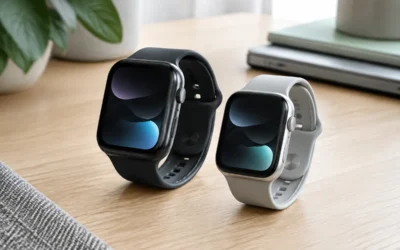
- Top Pick: Apple Watch Series 11 [GPS 42mm] Smartwatch with Rose Gold Aluminum Case with Light Blush Sport Band – S/M. Sleep Score, Fitness Tracker, Health Monitoring, Always-On Display, Water Resistant
- Best Value: Apple Watch Series 11 [GPS 46mm] Smartwatch with Jet Black Aluminum Case with Black Sport Band – M/L. Sleep Score, Fitness Tracker, Health Monitoring, Always-On Display, Water Resistant
- Premium Choice: Apple Watch SE 3 [GPS 40mm] Smartwatch with Starlight Aluminum Case with Starlight Sport Band – S/M. Fitness and Sleep Trackers, Heart Rate Monitor, Always-On Display, Water Resistant
Apple Pay turns your iPhone and Apple Watch into a secure, tap-to-pay wallet that works at millions of stores, in apps, and on the web. Once set up, it is faster than digging out a card, and every transaction is protected by a device-specific number so your real card details are never shared with the merchant.
This guide walks you through adding a card, paying in stores and online, and getting the most from Apple Pay on both your iPhone and a paired Apple Watch such as the Series 11 or SE 3. It takes only a few minutes to set up and works the same whether you have a brand-new watch or an older Series 6.
As an Amazon Associate we earn from qualifying purchases at no extra cost to you.
![Apple Watch Series 11 [GPS 42mm] Smartwatch with Rose Gold Aluminum Case with Light Blush Sport Band - S/M. Sleep Score, Fitness Tracker, Health Monitoring, Always-On Display, Water Resistant](https://m.media-amazon.com/images/I/31caPPnRysL._SL160_.jpg)
![Apple Watch Series 11 [GPS 46mm] Smartwatch with Jet Black Aluminum Case with Black Sport Band - M/L. Sleep Score, Fitness Tracker, Health Monitoring, Always-On Display, Water Resistant](https://m.media-amazon.com/images/I/416RQ0rtsUL._SL160_.jpg)
![Apple Watch SE 3 [GPS 40mm] Smartwatch with Starlight Aluminum Case with Starlight Sport Band - S/M. Fitness and Sleep Trackers, Heart Rate Monitor, Always-On Display, Water Resistant](https://m.media-amazon.com/images/I/31YiTby0pOL._SL160_.jpg)
![Apple Watch Series 11 [GPS 46mm] Smartwatch with Silver Aluminum Case with Purple Fog Sport Band - M/L. Sleep Score, Fitness Tracker, Health Monitoring, Always-On Display, Water Resistant](https://m.media-amazon.com/images/I/41CwEacA0hL._SL160_.jpg)
![Apple Watch SE 3 [GPS 40mm] Smartwatch with Midnight Aluminum Case with Midnight Sport Band - S/M. Fitness and Sleep Trackers, Heart Rate Monitor, Always-On Display, Water Resistant](https://m.media-amazon.com/images/I/31Gq8SToFJL._SL160_.jpg)
![Apple Watch Series 11 [GPS 42mm] Smartwatch with Jet Black Aluminum Case with Black Sport Band - S/M. Sleep Score, Fitness Tracker, Health Monitoring, Always-On Display, Water Resistant](https://m.media-amazon.com/images/I/41s72HIk5TL._SL160_.jpg)
![Apple Watch SE 3 [GPS 44mm] Smartwatch with Midnight Aluminum Case with Midnight Sport Band - M/L. Fitness and Sleep Trackers, Heart Rate Monitor, Always-On Display, Water Resistant](https://m.media-amazon.com/images/I/41IZwhp9VXL._SL160_.jpg)

⚡ Save on Your Next PC — Amazon Prime
Prime members get fast free shipping on the systems above, plus early access to Prime Day & Black Friday PC deals. New members get a 30-day free trial.
Watch: How to Set Up and Use Apple Pay on Your iPhone and Apple Watch — Video Review
Adding a Card to Apple Wallet
Open the Wallet app on your iPhone and tap the plus button in the top corner. Choose Debit or Credit Card, then either scan your card with the camera or enter the details manually. Your bank verifies the card, sometimes with a one-time code sent by text or email, and it appears in Wallet within seconds.
Setting Up Apple Pay on Your Apple Watch
On a paired watch like the Apple Watch Series 11 or SE 3, open the Watch app on your iPhone, tap Wallet & Apple Pay, and add your card there. Because the watch pays without needing your phone nearby, it must have a passcode set — this is what keeps payments locked to your wrist while you are wearing it.
Paying in Stores
At the register, double-click the side button on your iPhone and glance at the screen or rest your finger on Touch ID, then hold the phone near the reader. On the watch, double-click the side button and tap the reader. A gentle tap and beep confirm the payment — no need to unlock an app or wake the screen first.
Using Apple Pay in Apps and Online
When shopping in apps or in Safari, look for the Apple Pay button at checkout. Confirm with Face ID, Touch ID, or your watch, and your shipping and billing details fill in automatically. Because the merchant never sees your card number, it is often safer than typing card details into a website.
Tips
- Set a default card in Wallet so your most-used card is always ready without extra taps.
- Keep a passcode on your Apple Watch; removing it disables Apple Pay for security.
- If a terminal does not show the contactless symbol, ask the cashier — many readers accept it even when unlabeled.
- Add store loyalty and transit cards to Wallet too, so one double-click handles payment and rewards together.
Frequently Asked Questions
Is Apple Pay safe to use?
Yes. Apple Pay uses a unique device account number and a one-time security code for each transaction, so your actual card number is never stored on the device or shared with the store.
Does Apple Pay work if my iPhone has no signal?
Yes. In-store payments use NFC and work offline. Only app and online purchases that need verification require an internet connection.
Can I use Apple Pay on my watch without my iPhone?
Yes. Once a card is added to the watch, it pays independently as long as the watch is unlocked on your wrist, which is why a passcode is required.
What happens if I lose my iPhone or Apple Watch?
Use Find My to mark the device as lost, which immediately suspends Apple Pay. Your cards can also be removed remotely from iCloud, so a lost device does not put your accounts at risk.
Conclusion
Setting up Apple Pay takes just a few minutes and pays off every time you skip fumbling for a card. With your cards loaded on both your iPhone and Apple Watch, you get fast, private, tap-to-pay convenience wherever contactless payments are accepted — and stronger security than a physical card can offer.
Write Your Review
No reviews yet. Be the first to share your experience!