
Navigating the market for iPad Air accessories can feel overwhelming, especially with the diverse lineup of screen sizes and chip architectures released over recent years. When shopping in 2026, finding the right keyboard case requires looking past flashy marketing terms and focusing on how the accessory integrates into your daily workflow. Whether you use your tablet for heavy word processing, creative sketching, or casual media consumption, the right folio transforms your device into a true laptop replacement without sacrificing the inherent portability that makes the Air series so appealing.
- Form Factor and Portability: Cantilever vs. Folio Designs
- Typing Ergonomics: Key Travel, Layout, and Backlighting
- Trackpad Responsiveness and Gestures Support
- Power and Connectivity: Smart Connector vs. Bluetooth
- Weight Distribution and iPad Air Balance
- Protection Levels: Drop Resistance and Port Coverage
- Assessing Value: When to Spend More on Premium Models
- Related Guides
- FAQ
- Related Guides
Making an informed choice means evaluating your specific physical habits, travel routines, and typing preferences. A case that excels in a stationary office setup might prove too bulky for someone who works out of coffee shops or on crowded flights. By breaking down the core engineering elements—such as hinge mechanisms, key travel, battery integration, and overall weight distribution—you can filter out subpar options and invest in a peripheral that enhances your productivity for years to come.
As an Amazon Associate we earn from qualifying purchases at no extra cost to you.
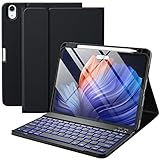


Form Factor and Portability: Cantilever vs. Folio Designs
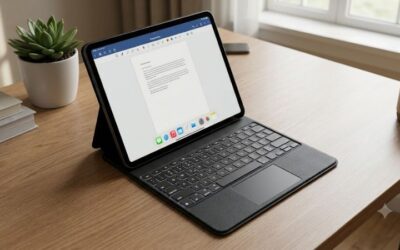
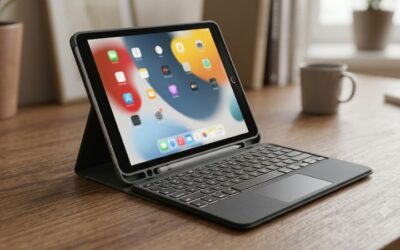
The physical architecture of a keyboard case generally falls into two distinct categories: floating cantilever designs and traditional folding folios. Cantilever stands elevate the iPad Air magnetically, allowing for smooth angle adjustments and mimicking a traditional laptop screen posture. This design is exceptionally stable when used on a lap or uneven surface, making it the preferred choice for mobile professionals. However, it typically adds significant weight and a rigid footprint to your carry bag.
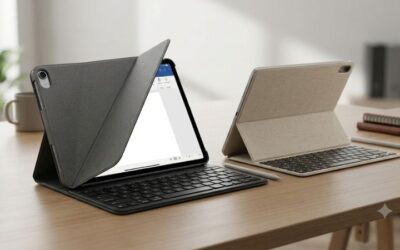
Traditional folding folios, on the other hand, wrap securely around the device and often feature a detachable keyboard or a kickstand-based back panel. While they require a bit more desk space to deploy the rear flap, they allow you to strip away the keyboard entirely when you want to use the iPad as a pure tablet for drawing or reading. Consider where you do most of your typing; if your device rarely leaves a flat desk, a cantilever stand offers superior ergonomics, whereas frequent travelers often benefit from the lighter, more modular nature of folding folios.
Typing Ergonomics: Key Travel, Layout, and Backlighting
Not all miniature keyboards are created equal, and physical dimensions heavily dictate tactile feedback. Look for models that offer adequate key travel—typically around one millimeter—to prevent finger fatigue during extended writing sessions. Scissor-switch mechanisms generally provide a more satisfying, responsive click compared to mushy membrane alternatives. Pay close attention to the top row of keys as well; dedicated shortcut rows for media controls, brightness adjustments, and screen locking save countless taps throughout the day.
Backlighting is another critical factor for low-light environments like dim offices, evening flights, or late-night study sessions. Multi-stage adjustable backlighting lets you balance visibility against battery consumption. Furthermore, check the spacing between keys. Compressed layouts designed to match smaller screen widths can lead to frequent typos if your muscle memory is accustomed to standard desktop keyboards. Testing the layout physically or reading user feedback regarding key spacing prevents frustrating transition periods.
Trackpad Responsiveness and Gestures Support
Integrating a trackpad fundamentally changes how you interact with iPadOS, shifting your workflow away from constant screen-reaching. When evaluating options, prioritize trackpads that feature mechanical click mechanisms across the entire surface rather than just the bottom half. Smooth glass or high-grade matte plastic coatings ensure that multi-touch gestures—such as pinching, swiping between full-screen apps, and bringing up the dock—register instantly without stuttering or friction.
Palm rejection technology is equally important. A poorly calibrated trackpad will interpret the base of your thumbs as errant mouse inputs while you type, causing the cursor to jump around your document. Premium alternatives utilize software integration to temporarily disable trackpad input fractions of a second after a keystroke, ensuring a seamless, error-free typing and navigation experience.
Power and Connectivity: Smart Connector vs. Bluetooth
How a keyboard communicates with your tablet dictates both battery management and setup friction. Models that utilize Apple’s proprietary physical contact pins draw power directly from the iPad and pair instantly without wireless lag or pairing dropouts. These options require zero charging cables and add negligible battery drain to your tablet, making them the most reliable choice for plug-and-play convenience.
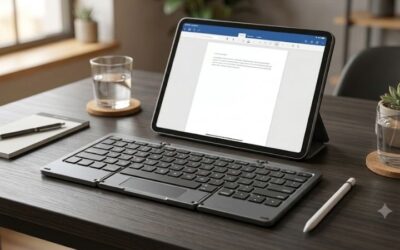
Bluetooth alternatives, conversely, rely on internal rechargeable batteries charged via USB-C and must be paired wirelessly. While this introduces the occasional need to recharge an auxiliary battery and manage Bluetooth dropouts, it offers distinct advantages. Bluetooth cases are often significantly cheaper, frequently feature detachable keyboards that can be positioned away from the screen, and can sometimes pair with multiple devices simultaneously, allowing you to toggle typing between your iPad, phone, and laptop.
Weight Distribution and iPad Air Balance
Because the iPad Air is prized for its featherlight chassis, adding a heavy keyboard case can counterintuitively ruin the user experience. A top-heavy assembly makes the device prone to tipping backward when placed on a soft surface or your lap. Always check the combined weight of the tablet and the case to ensure it does not rival or exceed the weight of a traditional ultraportable laptop.
Hinge tension and base stability must be robust enough to support the weight of the screen at wide viewing angles without sagging. Look for manufacturers that balance the base using weighted internal plates or sturdy aluminum framing. This ensures the entire assembly feels anchored, letting you tap vigorously on the touchscreen or adjust viewing angles without fearing that the hardware will destabilize.
Protection Levels: Drop Resistance and Port Coverage
Protection is a balancing act between physical bulk and structural defense. Minimalist cases leave the aluminum edges exposed for a sleeker profile and easier accessory attachment, but they offer little defense against corner drops or hard impacts. If you commute frequently or work in environments prone to accidental bumps, seek out cases featuring shock-absorbing TPU bumpers, reinforced corners, and raised bezels around the screen and rear camera module.
Consider how the case handles day-to-day wear and tear, such as fabric fraying, fingerprint accumulation, and hinge loosening over time. Premium polyurethane or vegan leather finishes resist staining and wipe down easily, whereas woven fabrics can trap dust and oil from your hands. Ensuring that ports, speakers, and microphones remain unobstructed guarantees that audio quality and charging speeds are never compromised by stray material.
Assessing Value: When to Spend More on Premium Models
The price spectrum for tablet keyboards is vast, stretching from budget third-party alternatives to costly branded flagships. Deciding when to invest more capital depends entirely on your dependency on the device. If you write professionally, edit documents daily, or rely on your tablet as your primary workstation for hours at a stretch, investing in a premium accessory pays dividends in structural longevity, typing comfort, and seamless OS integration.
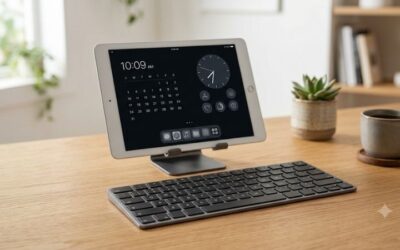
Conversely, if your iPad Air is primarily used for streaming media, checking emails, and casual web browsing with occasional typing needs, a mid-range folio or a separate Bluetooth keyboard and stand combination provides better fiscal value. Avoid paying for advanced features like specialized functional shortcut strips or heavy-duty drop certification if your daily routine does not demand them.
Related Guides
For more insights on outfitting your tablet with the right peripherals, explore our comprehensive Best keyboard cases ipad air: Ultimate Top Choices roundup to compare specific current hardware features and performance benchmarks.
FAQ
Do keyboard cases drain the iPad battery significantly?
Models that connect via physical pins draw a negligible amount of power directly from the tablet, resulting in minimal battery impact. Bluetooth options rely on their own internal rechargeable batteries, meaning they draw zero power from your iPad and require separate charging via USB-C.
Can I charge my iPad Air while it is inside a closed keyboard case?
Yes, reputable cases feature precise cutouts and passthrough engineering that leave the USB-C charging port completely unobstructed. You can plug in your charging cable and data accessories without ever removing the tablet from its protective folio.
How do I clean sticky keys or debris from the keyboard surface?
First, detach or power down the keyboard to prevent accidental inputs. Use a can of compressed air at a safe distance to blow out crumbs from between the keys, followed by a lightly damp microfiber cloth with a small drop of isopropyl alcohol to wipe down the surfaces.
Are third-party keyboard cases just as good as Apple-branded options?
Many third-party manufacturers offer exceptional typing experiences, added protection, adjustable viewing angles, and lower price points that rival official accessories. However, Apple-branded options generally provide the tightest hardware integration, flawless gesture tracking, and zero Bluetooth pairing friction.





Write Your Review
No reviews yet. Be the first to share your experience!