
Connecting your modern Mac or iPad to a high-performance external monitor requires the right hardware connection to ensure you are getting every drop of performance out of your display. While adapters and multi-port dongles have their place on the road, a dedicated direct cable eliminates points of failure, reduces desk clutter, and provides a much more stable video signal. However, walking into the marketplace for video connection wires can feel overwhelming due to the sheer volume of technical jargon, varying protocol versions, and confusing marketing claims that rarely tell the whole story about real-world performance.
As we navigate hardware setups in 2026, display technologies have advanced significantly, bringing high refresh rates and ultra-high-definition panels into the mainstream for creative professionals and power users alike. Choosing the right wire is no longer just about getting a picture on the screen; it is about ensuring color accuracy, maximizing refresh rates for smooth motion, and maintaining a reliable handshake between your Apple device and your monitor. This comprehensive decision guide breaks down everything you actually need to look for, helping you bypass marketing gimmicks and select a product that performs flawlessly.
As an Amazon Associate we earn from qualifying purchases at no extra cost to you.

Understanding DisplayPort Version Standards
The single most important specification to look at before purchasing a video link is the DisplayPort version supported by the wire. DisplayPort standards dictate the maximum total bandwidth available, which directly impacts the resolutions and refresh rates you can push to your monitor. Older standards like DisplayPort 1.2 lack the necessary throughput for modern high-resolution gaming monitors or professional color-grading displays. When shopping for your setup, look for cables that explicitly support DisplayPort 1.4 or higher. DisplayPort 1.4 comfortably handles 4K video at high refresh rates, while newer iterations provide even more headroom for uncompressed multi-stream video setups. Ensuring your cable matches or exceeds your monitor’s native version prevents frustrating bottlenecks that limit your display’s true potential.
Uni-Directional vs. Bi-Directional Functionality
A common point of confusion for buyers is understanding the directionality of video signal conversion. A USB-C to DisplayPort connection is almost always uni-directional, meaning it is specifically engineered to send a video signal from a USB-C source device—like your MacBook Pro, MacBook Air, or iPad Pro—to a DisplayPort-enabled monitor. These cables feature internal active chipsets that actively convert the DisplayPort Alt Mode signal coming from your computer’s USB-C port into a native DisplayPort signal understood by the monitor. You cannot plug the DisplayPort end into your computer and the USB-C end into your monitor expecting it to work in reverse. Always verify the directionality of the cable to ensure it aligns with your hardware layout.
Refresh Rates, Bandwidth, and Resolution Support
Your workflow dictates the exact bandwidth requirements you need from your connection. If you are a video editor working with timeline scrubbing, a graphic designer reviewing high-resolution assets, or a professional who values crisp text rendering, resolution and refresh rate stability are paramount. A quality cable should support standard 4K resolutions at robust refresh rates, or even 1440p at ultra-high refresh rates for fluid motion tracking. Cheaper, uncertified cables often drop frames, introduce screen flickering, or fail entirely when pushed to their maximum rated resolutions. Always cross-reference the maximum resolution and refresh rate claims of the cable with the native specifications of your external monitor to ensure a harmonious pairing.
Cable Length and Signal Integrity
Physics plays a significant role in high-speed digital video transmission, and cable length is a critical factor that many buyers overlook. Unlike simple USB charging cords, active video conversion cables carry delicate high-frequency data signals that degrade over distance. For optimal signal integrity and zero packet loss, stick to shorter lengths whenever possible. If your workspace layout requires a longer reach, you must invest in a higher-tier active cable that utilizes superior internal copper shielding or built-in signal boosters to prevent dropouts and artifacts. Avoid excessively long budget cables if you plan to run demanding resolutions, as signal attenuation will almost certainly lead to intermittent black screens.
Build Quality, Connectors, and EMI Shielding
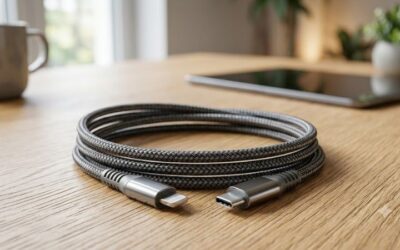
The physical construction of a cable determines its longevity, especially if you frequently pack it into a bag or reposition your desk setup. Look for options featuring braided nylon exteriors, which resist fraying and tangling far better than traditional rubberized PVC coatings. Furthermore, pay attention to the connector housing; aluminum or reinforced zinc-alloy shells provide better durability and heat dissipation than molded plastic ends. Internal electromagnetic interference (EMI) shielding is equally vital, as it protects the delicate video data stream from being disrupted by nearby power bricks, Wi-Fi routers, or other peripheral devices on your desk.
Apple Silicon Compatibility and Power Delivery
Using external displays with Apple Silicon Macs (M1, M2, M3, and M4 series chips) introduces unique hardware considerations. While modern macOS handles direct video output seamlessly, some specialized multi-monitor configurations or legacy display setups require clean, uninterrupted protocol handshakes. Additionally, it is important to remember that standard USB-C to DisplayPort cables are designed strictly for video transmission and do not pass power back to charge your laptop or tablet. You will need to maintain a separate power connection or utilize a docking station if you rely on your display cable to simultaneously power your Apple device while extending your desktop workspace.
Related Guides
For more insights on upgrading your workspace connectivity, check out our in-depth Best USB C to DisplayPort Cable: Ultimate Top Choices roundup. If you are also looking to optimize your desk layout with specialized physical connections, our guide on the Best 90 Degree USB C Cable Options for Ultimate Speed offers fantastic solutions for tight spaces.
FAQ
Do USB-C to DisplayPort cables charge your MacBook or iPad while connected?
No, standard USB-C to DisplayPort cables are strictly engineered for high-bandwidth video and audio data transfer. They do not support Power Delivery (PD) pass-through to charge your host device. You will need to keep your Apple device plugged into its standard power adapter or a powered USB-C hub while driving an external monitor.
Why does my screen keep flickering or going black randomly?
Intermittent signal drops are usually caused by insufficient bandwidth, poor internal shielding, or a subpar active conversion chip inside the cable. Ensure your cable is securely plugged in at both ends and rated for your monitor’s specific resolution and refresh rate. Upgrading to a higher-quality, certified cable often resolves these frustrating stability issues completely.
Can I use a bi-directional cable to connect a DisplayPort computer to a USB-C monitor?
In almost all cases, no. The vast majority of USB-C to DisplayPort cables are uni-directional and only function when plugged into a USB-C source device and a DisplayPort monitor. Converting a native DisplayPort signal from a desktop tower to a USB-C monitor requires specialized and often expensive active bi-directional adapter boxes rather than standard cables.
Are more expensive cables actually better for video output?
Price does not always guarantee quality, but ultra-cheap cables often cut corners on internal copper gauge, signal shielding, and active conversion chipsets. Spending a little more on a reputable brand ensures you get reliable bandwidth, proper VESA certification, and durable physical construction that withstands daily wear and tear.
Write Your Review
No reviews yet. Be the first to share your experience!